

ऐसा क्यों होता है
अगर आपका ऑटोमेशन ऐप एक फोन पर “भरोसेमंद” है और दूसरे पर “रैंडम”, तो आमतौर पर समस्या ऐप नहीं होती। समस्या फोन का बैटरी मैनेजर होता है।
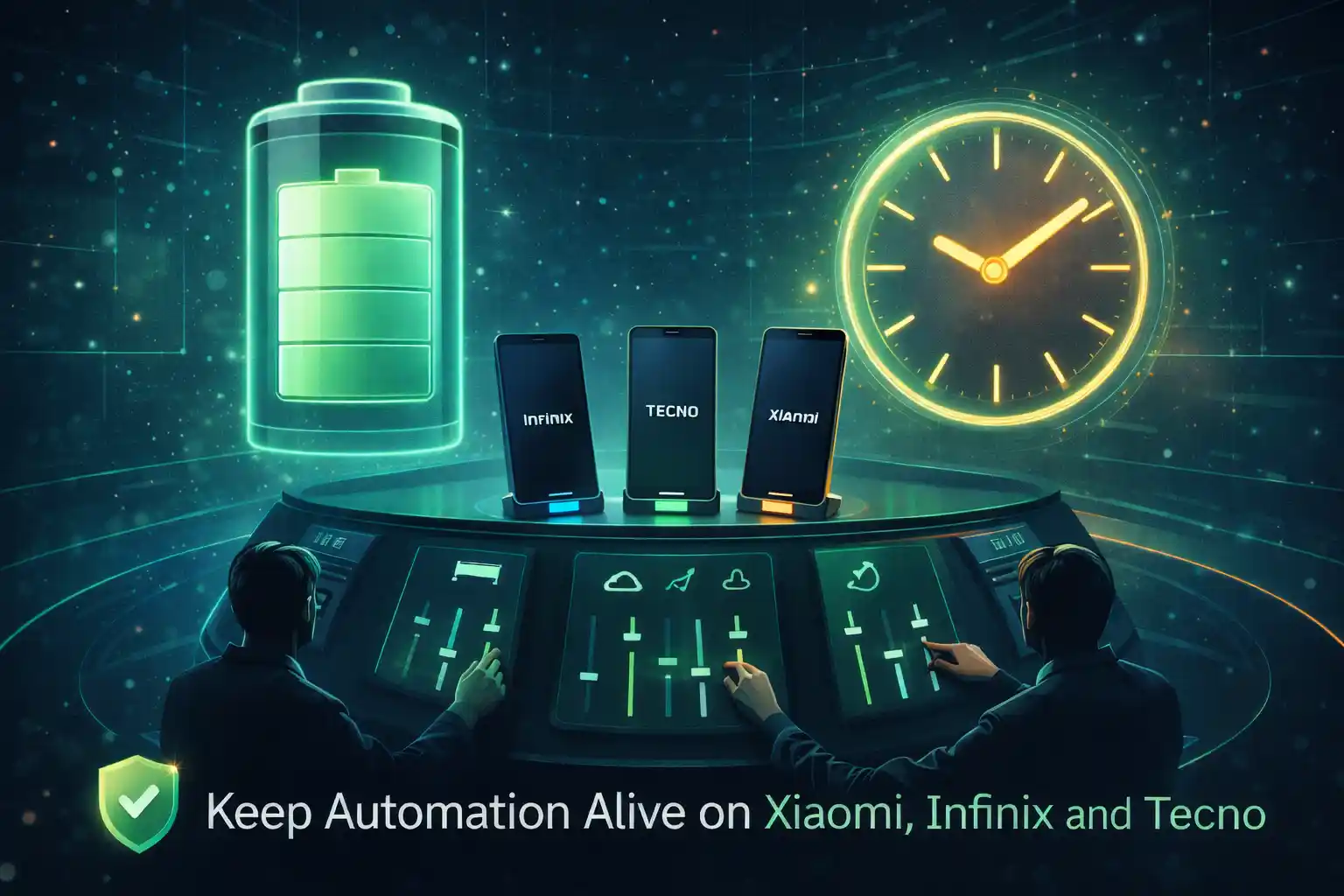
कुछ ब्रांड (खासकर Xiaomi, Infinix, और Tecno) बैकग्राउंड काम को रोकने में बहुत आक्रामक होते हैं। इससे बैटरी बचती है, लेकिन अगर आप ऐप को सही से चलने नहीं देते, तो शेड्यूल देर से हो सकते हैं।
शुरू करने से पहले: वे सेटिंग्स जो सबसे ज़्यादा मायने रखती हैं
अलग-अलग फोन अलग नाम इस्तेमाल करते हैं, लेकिन लक्ष्य हमेशा एक ही है: अपने ऑटोमेशन ऐप को फोन के “स्लीप” मोड में न जाने दें।
यह पक्का करने के लिए एक तेज़ टेस्ट कि आपका फोन शेड्यूल ब्लॉक कर रहा है
Xiaomi (MIUI / HyperOS): पूरा चेकलिस्ट
Xiaomi फोन शक्तिशाली होते हैं, लेकिन उनके बैटरी नियम सख्त होते हैं। ये वे सामान्य जगहें हैं जो ऑटोमेशन तोड़ देती हैं।
1) बैटरी ऑप्टिमाइज़ेशन बंद करें
- सेटिंग्स → बैटरी (या बैटरी और प्रदर्शन)।
- ऐप बैटरी सेवर / बैटरी ऑप्टिमाइज़ेशन ढूँढें।
- TikTask को “कोई प्रतिबंध नहीं” (या सबसे नज़दीकी विकल्प) पर सेट करें।
2) ऑटो-स्टार्ट चालू करें (महत्वपूर्ण)
- सेटिंग्स → ऐप्स → अनुमतियाँ → ऑटो-स्टार्ट (या “ऑटो-स्टार्ट”)।
- TikTask चालू करें।
3) Xiaomi विशेष अनुमतियाँ पूरी करें
- सेटिंग्स → ऐप्स → Manage ऐप → TikTask → Other अनुमतियाँ.
- लॉक स्क्रीन पर दिखाएँ, पॉप-अप विंडो दिखाएँ, और बैकग्राउंड में चलते समय नई विंडो खोलें चालू करें (नाम संस्करण के हिसाब से बदल सकते हैं)।
- अगर आपके फोन में यही अनुमतियाँ अलग लेबल से दिखती हैं, तो वे विकल्प चालू करें जो TikTask को बैकग्राउंड में दिखाई देने और सक्रिय रहने देते हैं।
4) सूचनाएँ की अनुमति है (अनुशंसित)
- सेटिंग्स → सूचनाएँ → ऐप सूचनाएँ → TikTask → अनुमति दें।
Infinix (XOS): पूरा चेकलिस्ट
Infinix अक्सर सबसे ज़रूरी टॉगल्स को Power Manager / बैटरी लैब / ऐप प्रबंधन के नीचे छुपा देता है।
1) ऐप को बैकग्राउंड में चलने दें
- सेटिंग्स → बैटरी / Power Manager।
- ऐप प्रबंधन (या मिलती-जुलती चीज़) ढूँढें।
- TikTask को बैकग्राउंड में चलने दें।
2) ऐप के लिए पावर-सेविंग प्रतिबंध बंद करें
- TikTask को “कोई प्रतिबंध नहीं” (या “Don’t optimize”) पर सेट करें।
3) ऑटो-स्टार्ट / स्टार्टअप मैनेजर
- स्टार्टअप मैनेजर / ऑटो-स्टार्ट ऐप में TikTask चालू करें।
Tecno (HiOS): पूरा चेकलिस्ट
Tecno, Infinix जैसा ही है (एक ही इकोसिस्टम)। मुख्य लक्ष्य है: बैकग्राउंड गतिविधि अनुमति देना और पावर प्रतिबंध हटाना।
1) Power Manager / बैटरी सेटिंग्स
- सेटिंग्स → बैटरी / Power Manager।
- ऐप power प्रबंधन ढूँढें।
- TikTask को “कोई प्रतिबंध नहीं” (या समान) पर सेट करें।
2) ऑटो-स्टार्ट / स्टार्टअप मैनेजर
- स्टार्टअप मैनेजर में TikTask चालू करें।
3) सूचनाएँ + ओवरले
- TikTask के लिए सूचनाएँ अनुमति दें।
- अगर आप ऑन-स्क्रीन अलर्ट/टाइमर इस्तेमाल करते हैं, तो ओवरले अनुमति दें।
अगर फिर भी फेल हो, तो अतिरिक्त फ़िक्स
मुख्य चेकलिस्ट के बाद भी अगर शेड्यूल देर से चल रहे हैं, तो आमतौर पर इनमें से कोई एक कमी रह गई होती है:
- “बैटरी Saver” मोड पूरी तरह बंद करके एक बार टेस्ट करें।
- ऐप के लिए “Unrestricted डेटा” या बैकग्राउंड डेटा अनुमति दें (अगर आपके फोन में है)।
- ऐप अपडेट रखें (कुछ OEM फ़िक्स अपडेट्स के जरिए आते हैं)।
- सेटिंग्स बदलने के बाद फोन एक बार रीस्टार्ट करें।
निष्कर्ष
Xiaomi, Infinix, और Tecno डिफ़ॉल्ट रूप से बैकग्राउंड ऑटोमेशन को ब्लॉक कर सकते हैं। एक बार आप प्रतिबंध हटाकर ऑटो-स्टार्ट/बैकग्राउंड गतिविधि की अनुमति दे देते हैं, तो शेड्यूल फिर से भरोसेमंद हो जाते हैं।
अगर आप TikTask इस्तेमाल करते हैं, तो सिस्टम मॉनिटर आपको बिना अंदाज़े के, जल्दी से सही सेटिंग्स ढूँढने और ठीक करने में मदद करता है।