
TikTask logo TikTask
Getting started • 6 min read

💬 How to schedule WhatsApp messages on Android (step-by-step)

Pick a chat or group, write your message, choose a time, and TikTask will send it from your phone.

whatsapp android scheduling beginner

Scheduling a WhatsApp message with TikTask is simple: choose who to message, write your text, pick a time, and TikTask sends it from your phone.

This guide is written for non-technical users, so we’ll explain what each step means, not just what to tap.

ℹ️
Before you start
TikTask schedules messages on your device, not on a server. When it’s time to send, TikTask may briefly open WhatsApp to complete the action. That’s normal.

Step-by-step

1
Pick Action
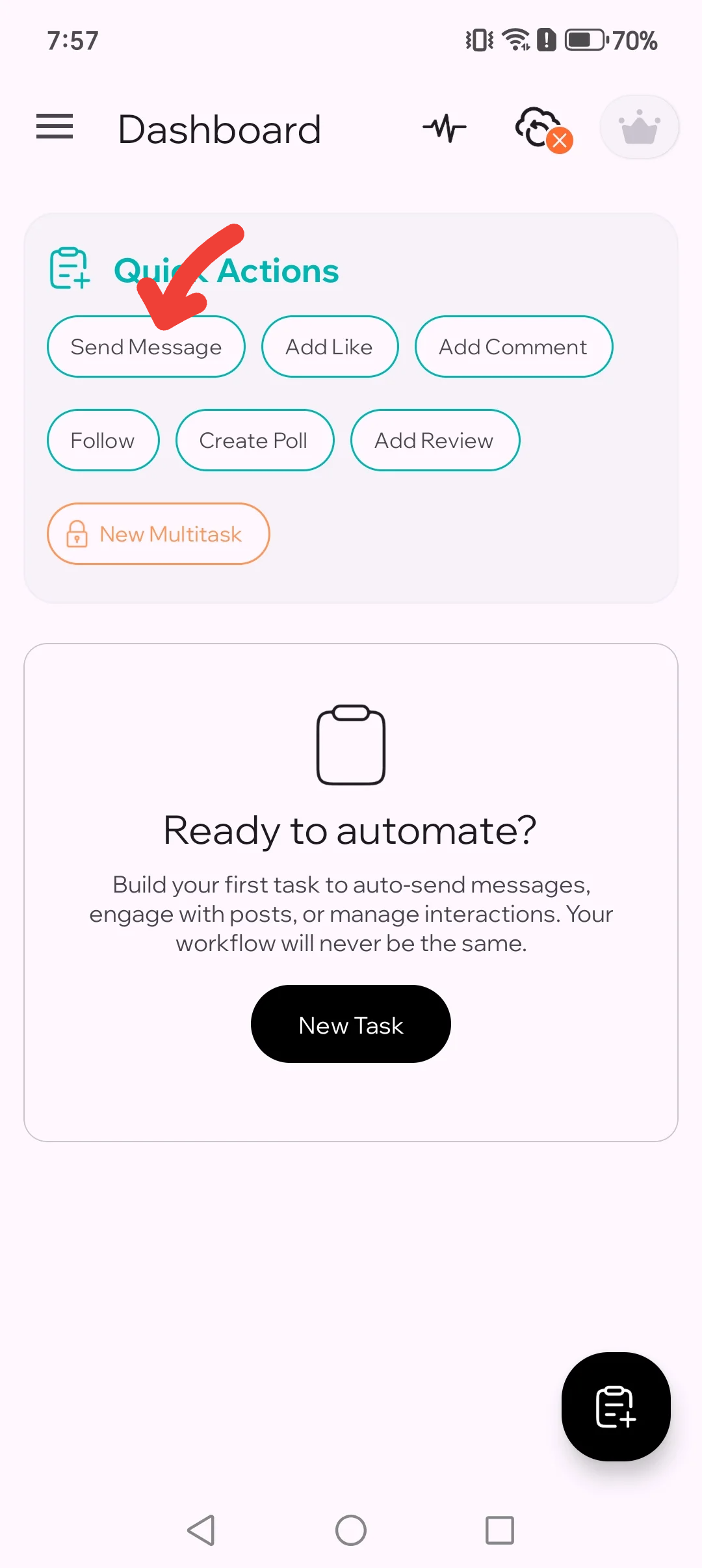
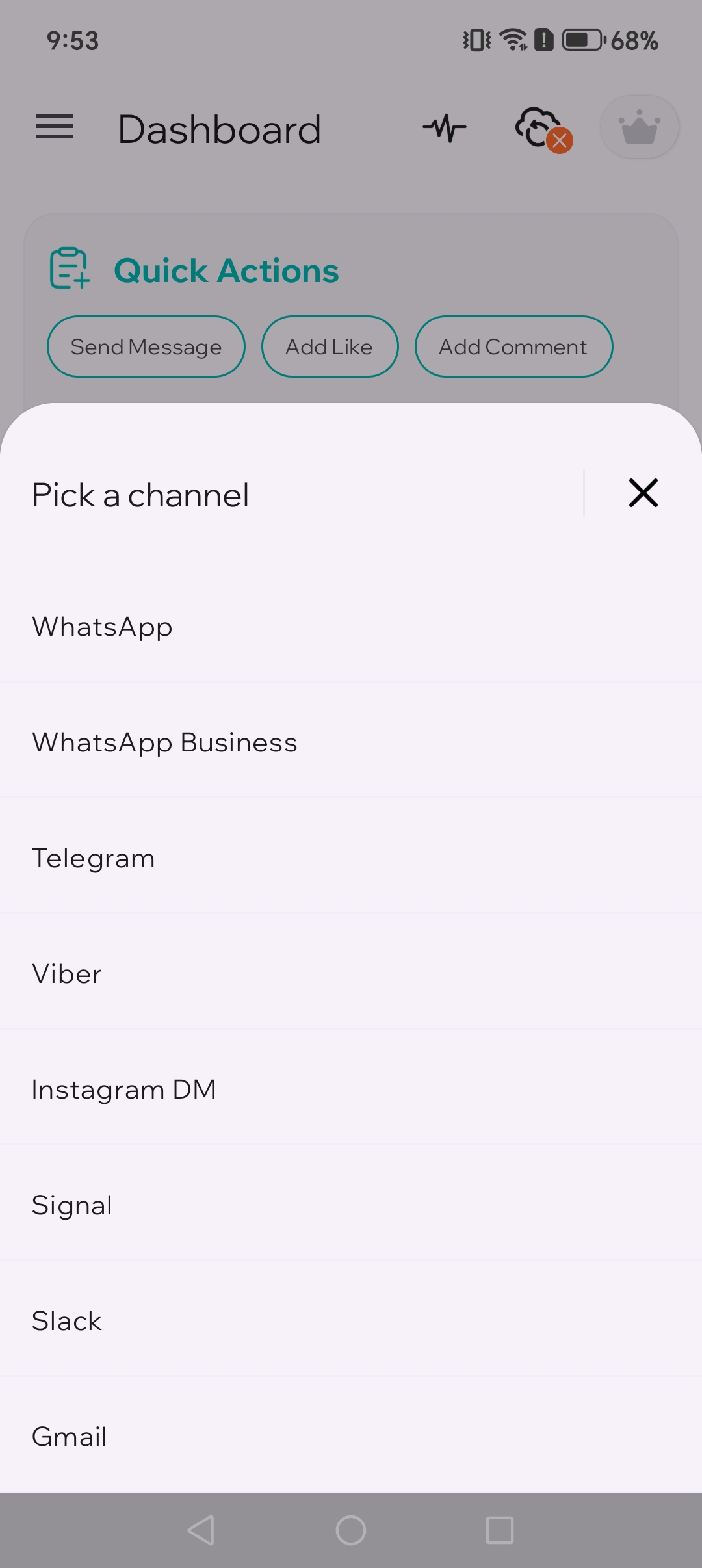
Open TikTask, pick "Send Message" from Quick Actions, then choose WhatsApp.
Quick actions panel with Send Message highlighted
1.1. Start by choosing Send Message.
Channel selection picker showing WhatsApp option
1.2. Pick WhatsApp from the picker.
2
Write your message
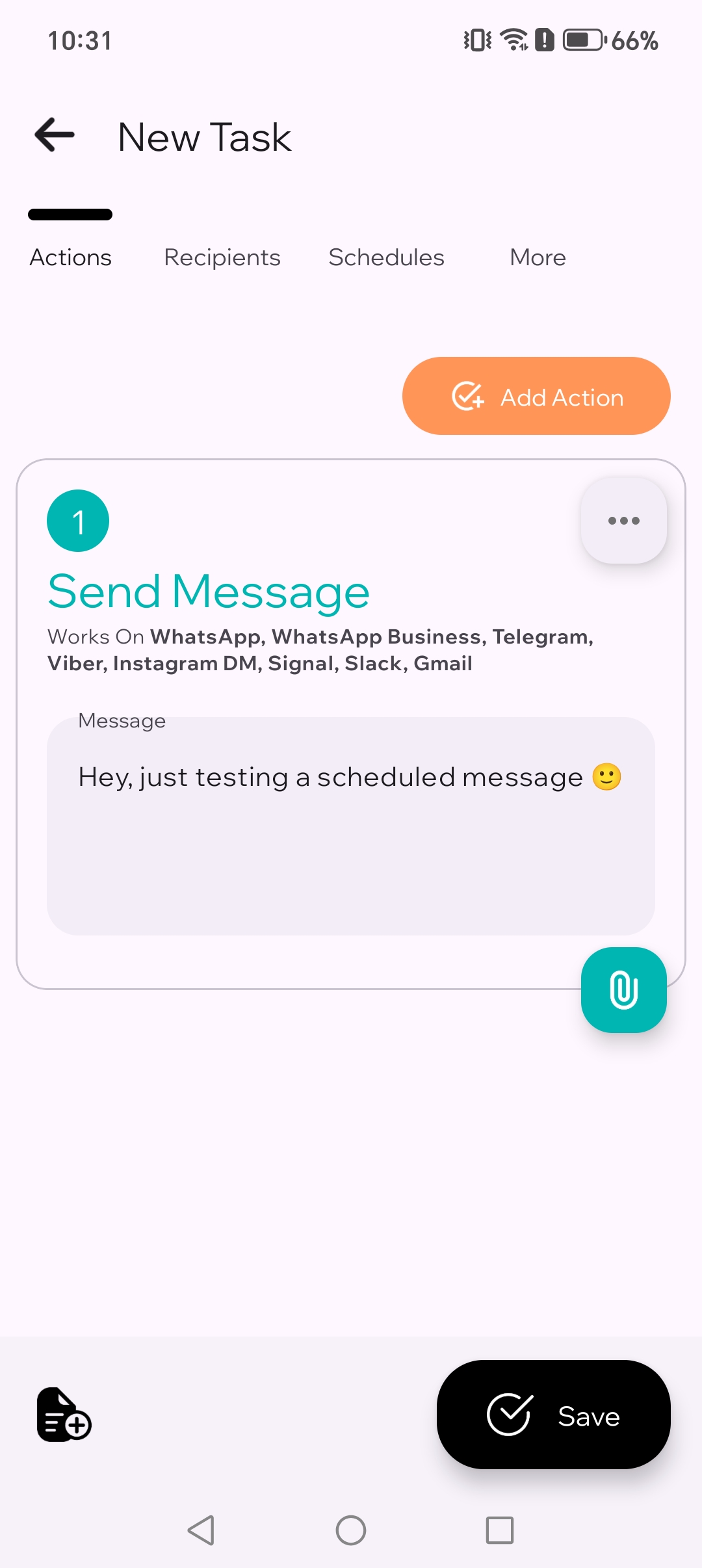
Type your message. For your first test, keep it short and clear. Example: “Hey, just testing a scheduled message 🙂”.
Message editor screen with text input filled
2. Write a simple message.
3
Optional: add an attachment
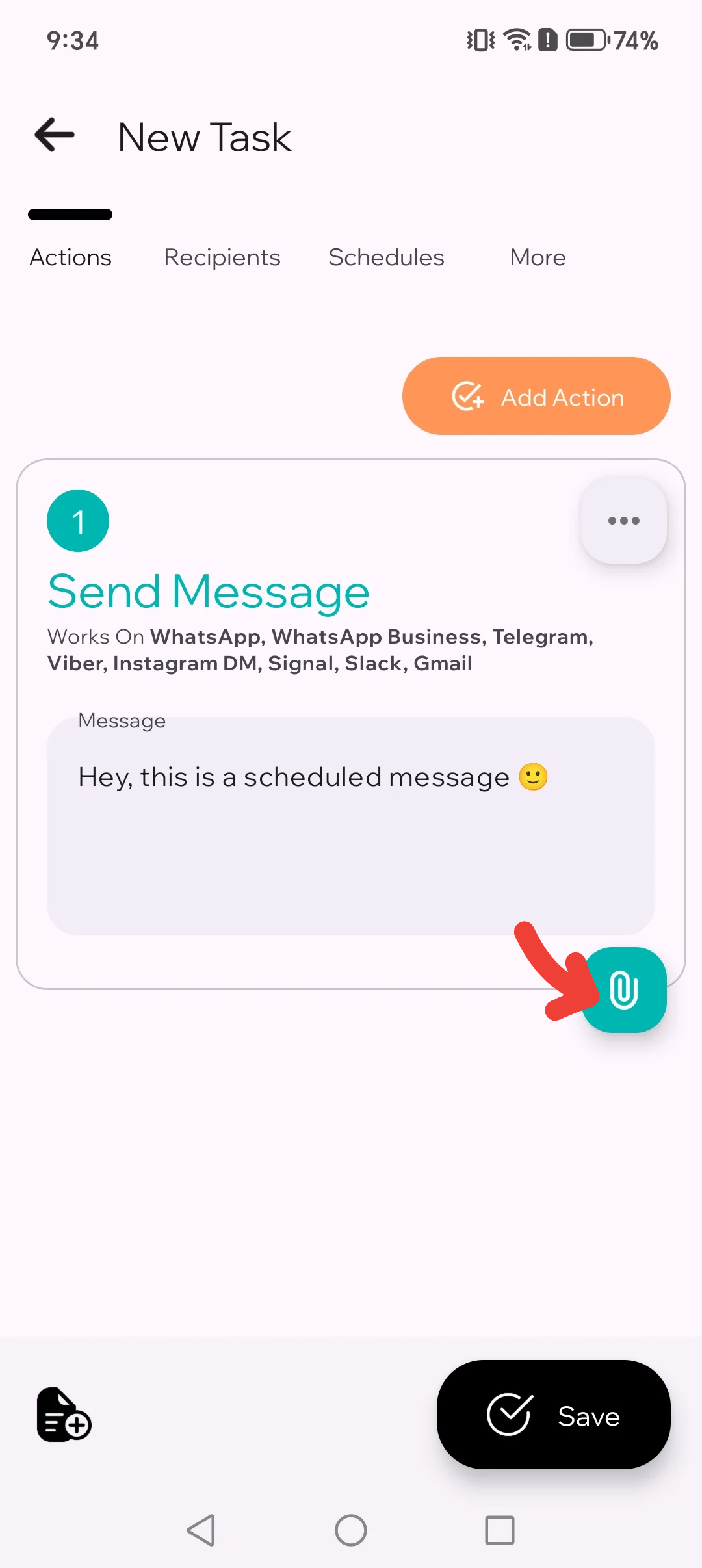
If you want to send an image or document, attach it here. If you are not sure, skip it for now. Text-only is the easiest first test.
Add attachment button highlighted
3.1. Click add attachment button.
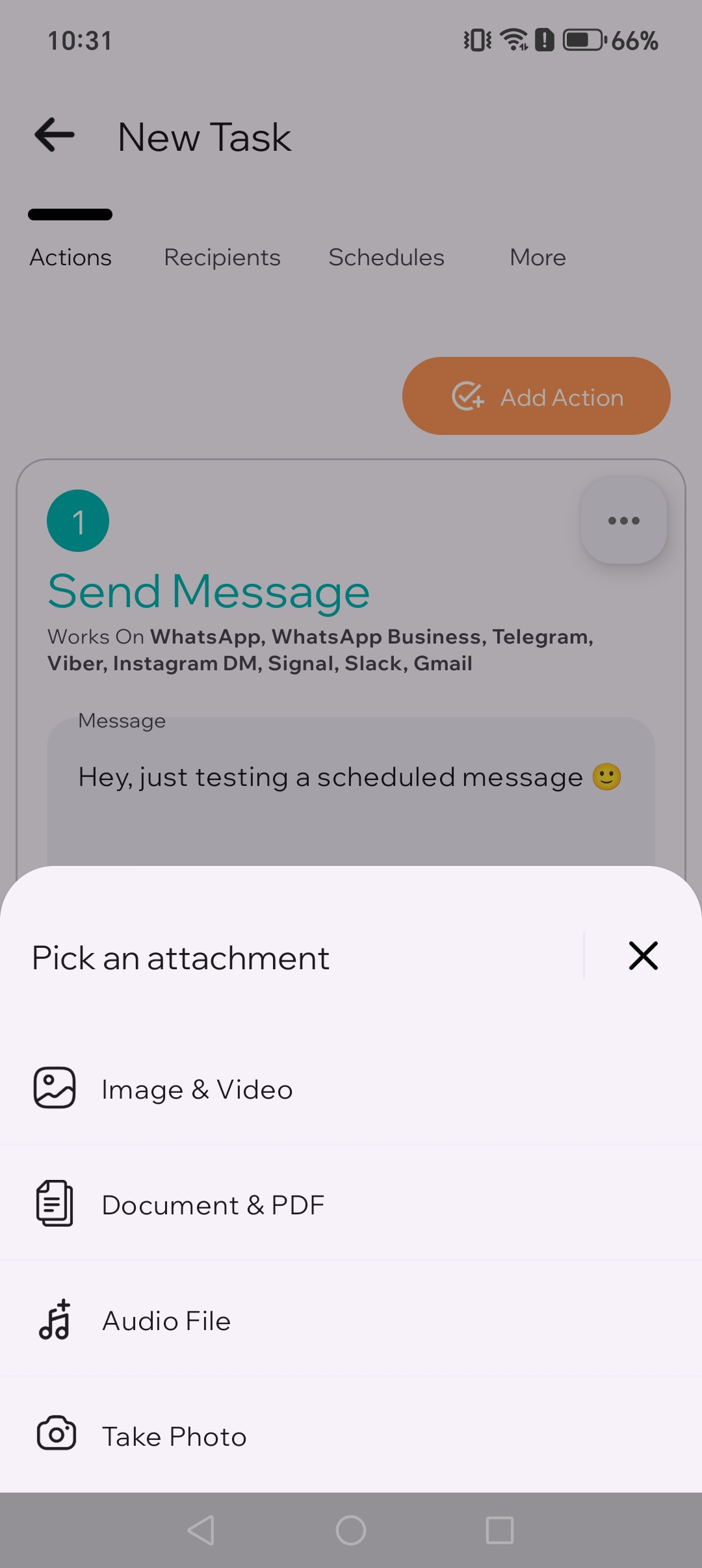
Attachment picker showing file options
3.2. Pick the attachment type.
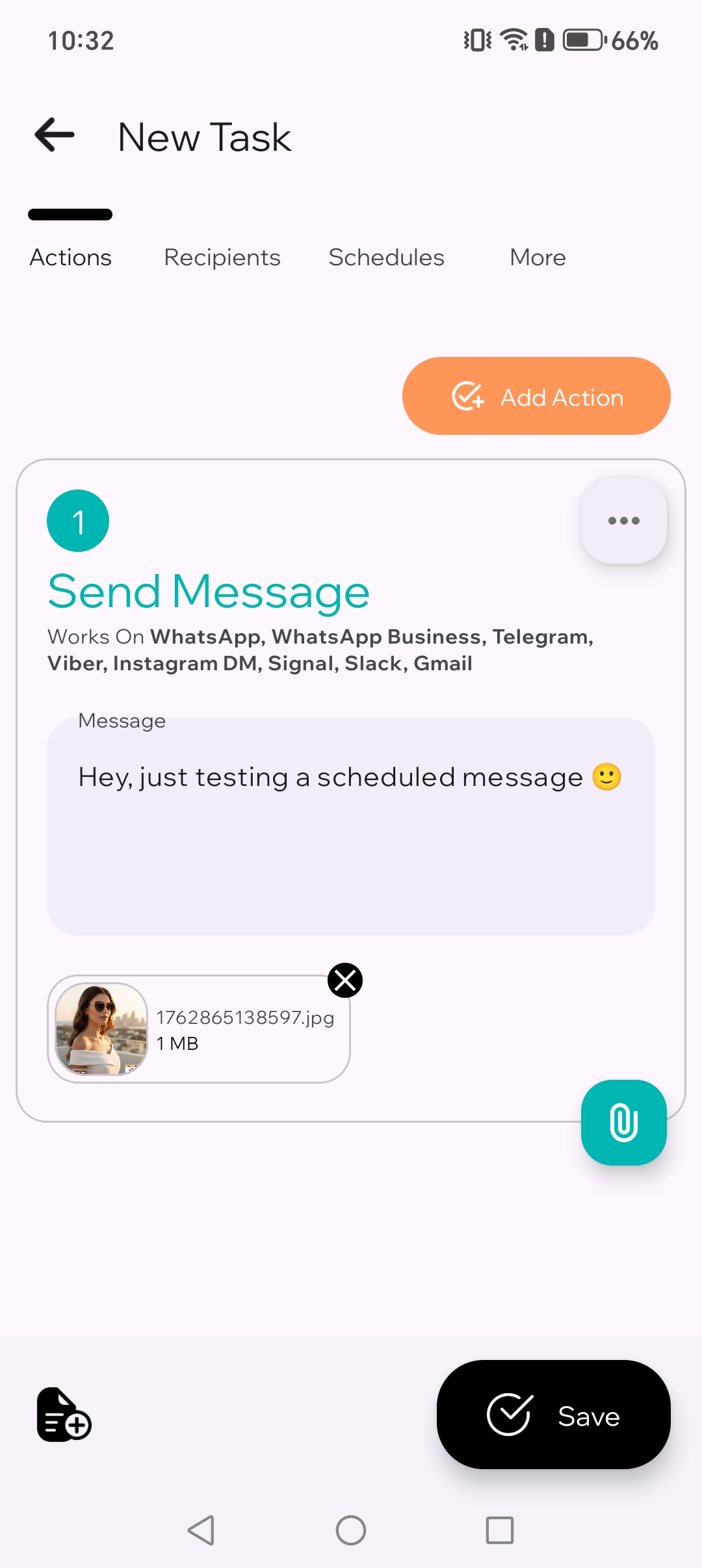
Image attached to the message
3.3. Attach image to the message.
4
Pick recipients
Select the chat, group, or contact you want to send to. If you message the same people often, you can save them later as a Recipient List.
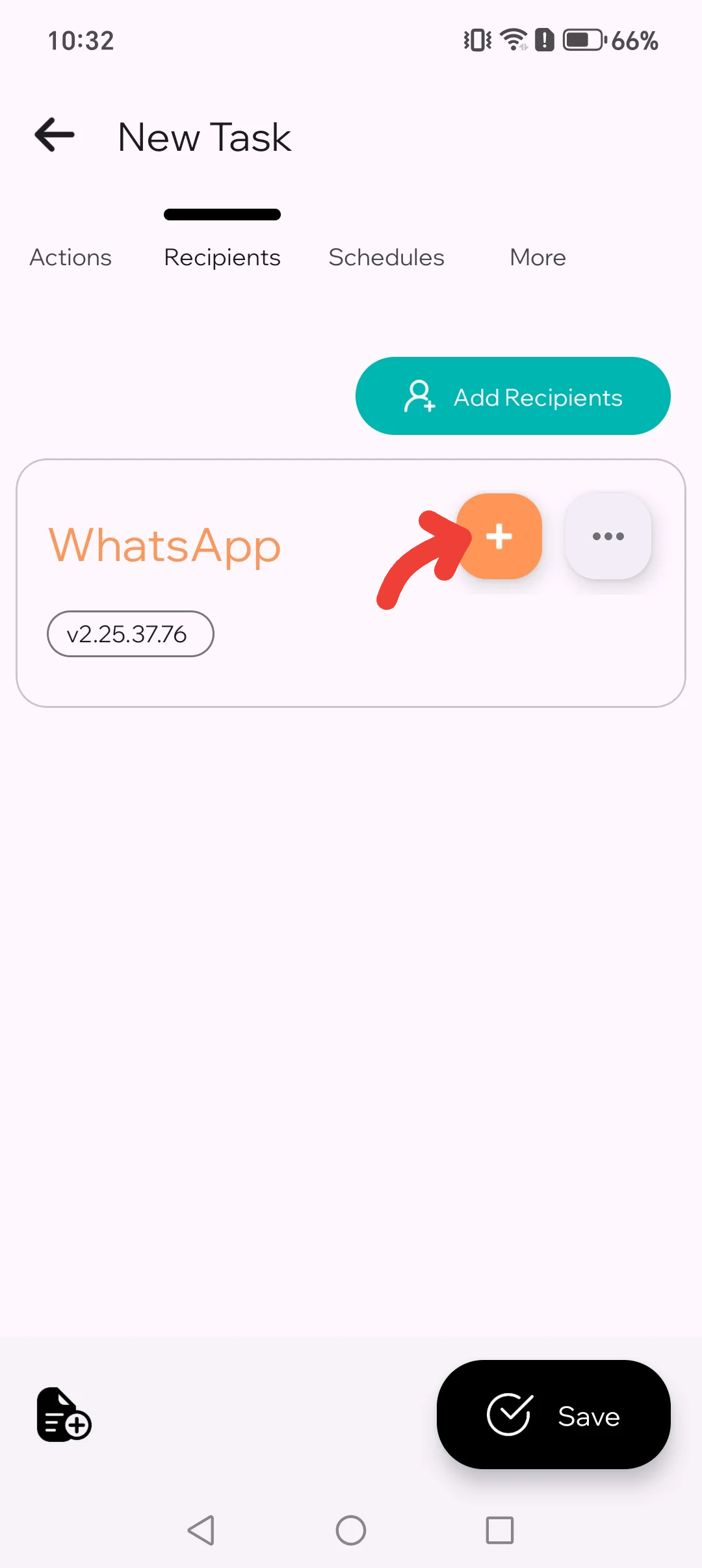
Recipients tab with Add WhatsApp Recipient highlighted
4.1. Click Add Recipients button.
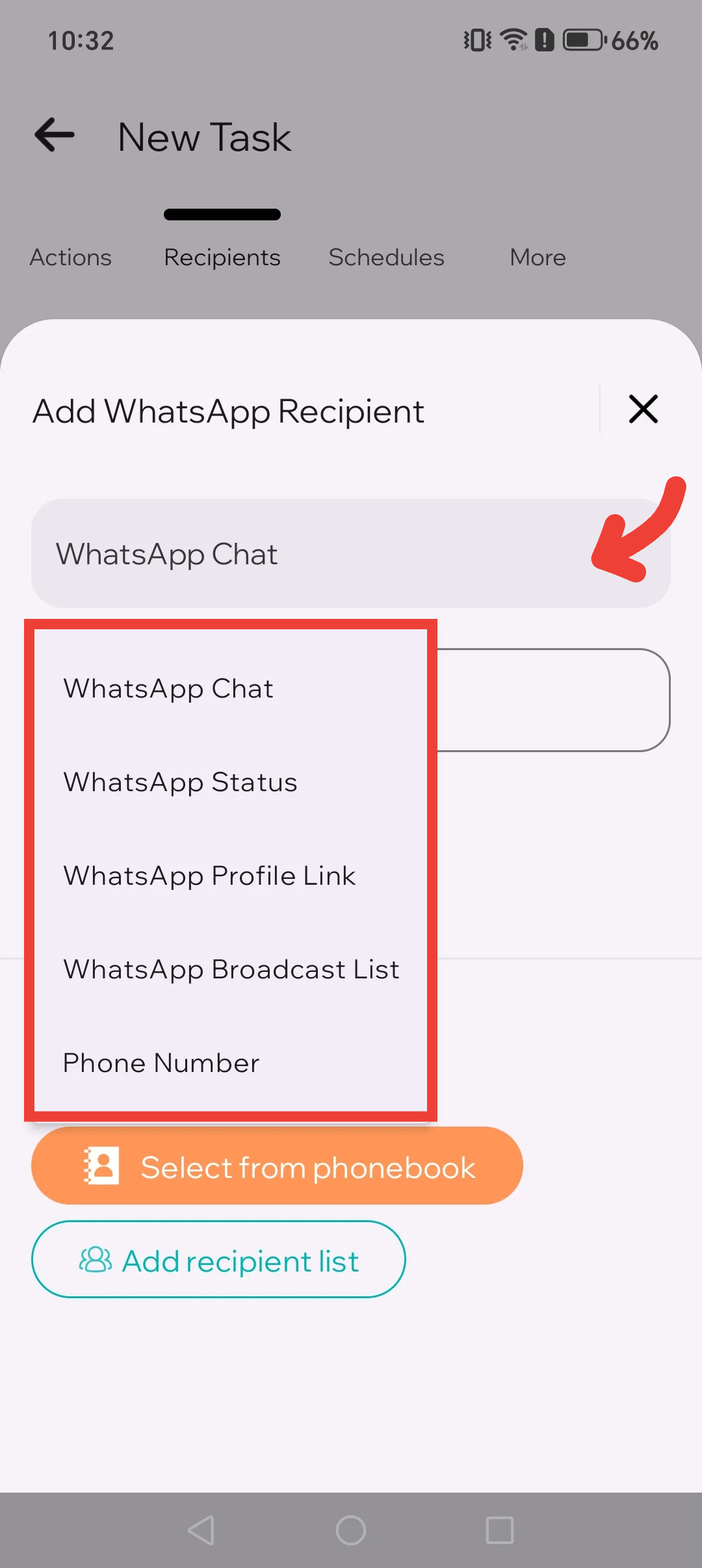
Recipient type selection list showing chats and groups
4.2. Change recipient type if needed.
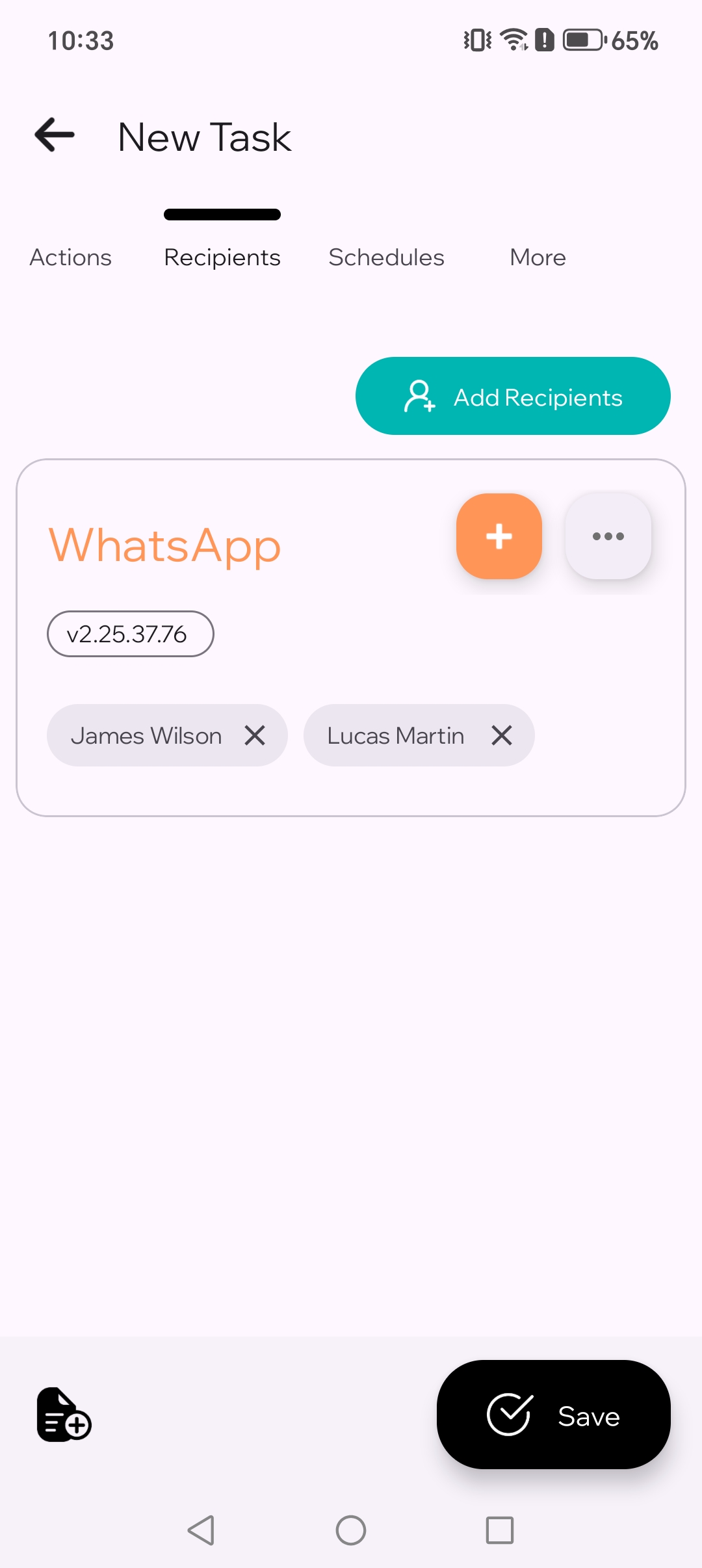
WhatsApp recipients added to the message
4.3. WhatsApp recipients added.
5
Choose the schedule time
Pick a time 2–5 minutes from now for your first test. Once you trust it, you can schedule days ahead or set a repeating routine.
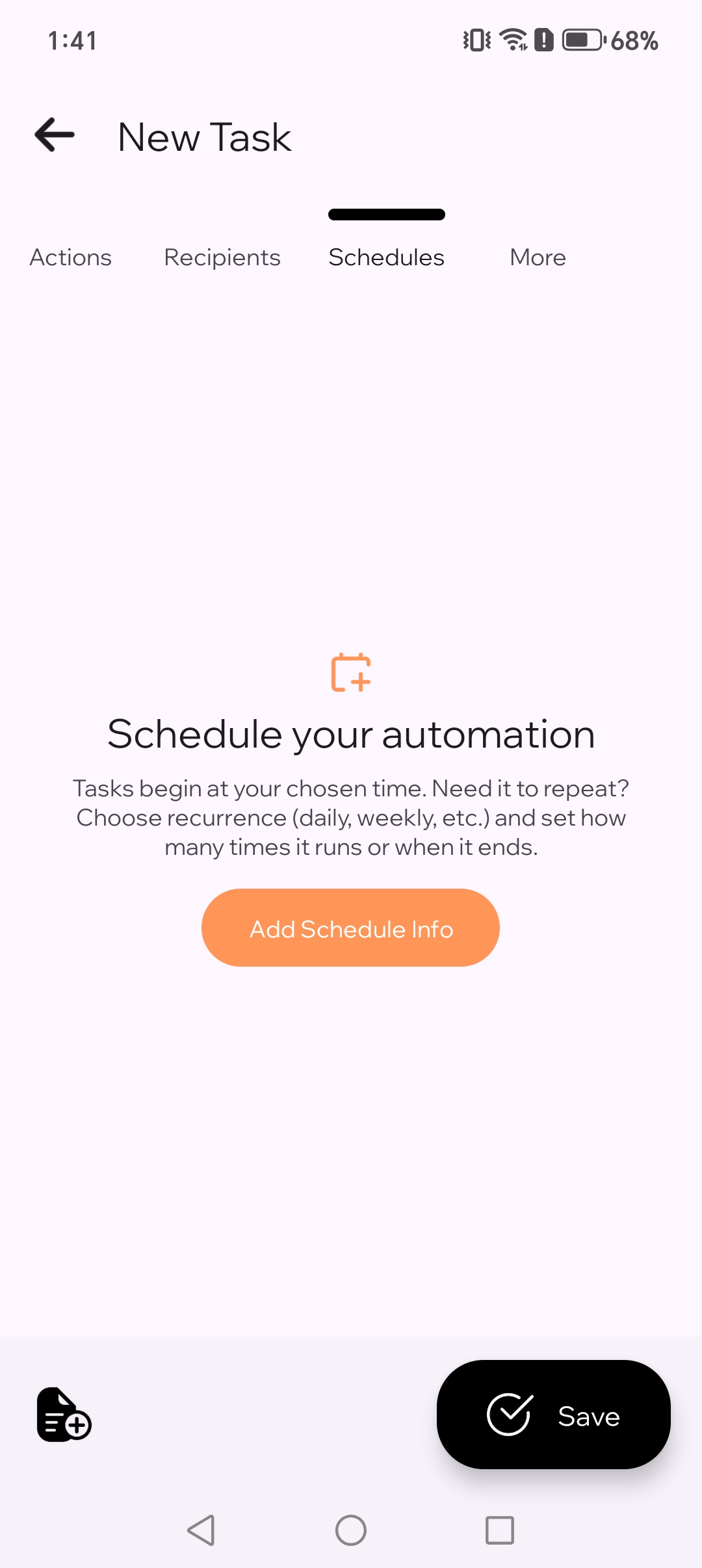
Schedules tab showing Add Schedule Info button
5.1. Click Add Schedule Info button.
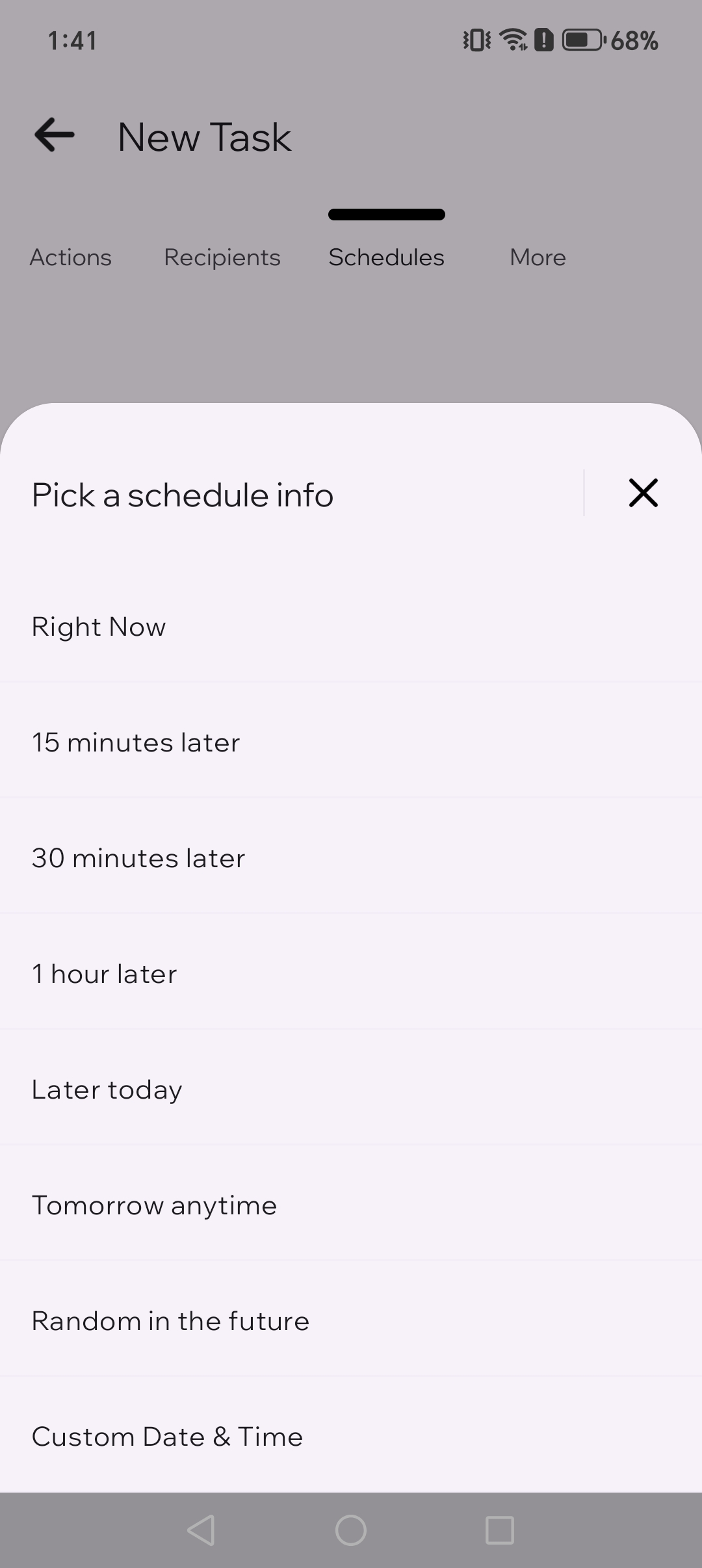
Schedule info selection list showing different options
5.2. Select an option, change it anytime .
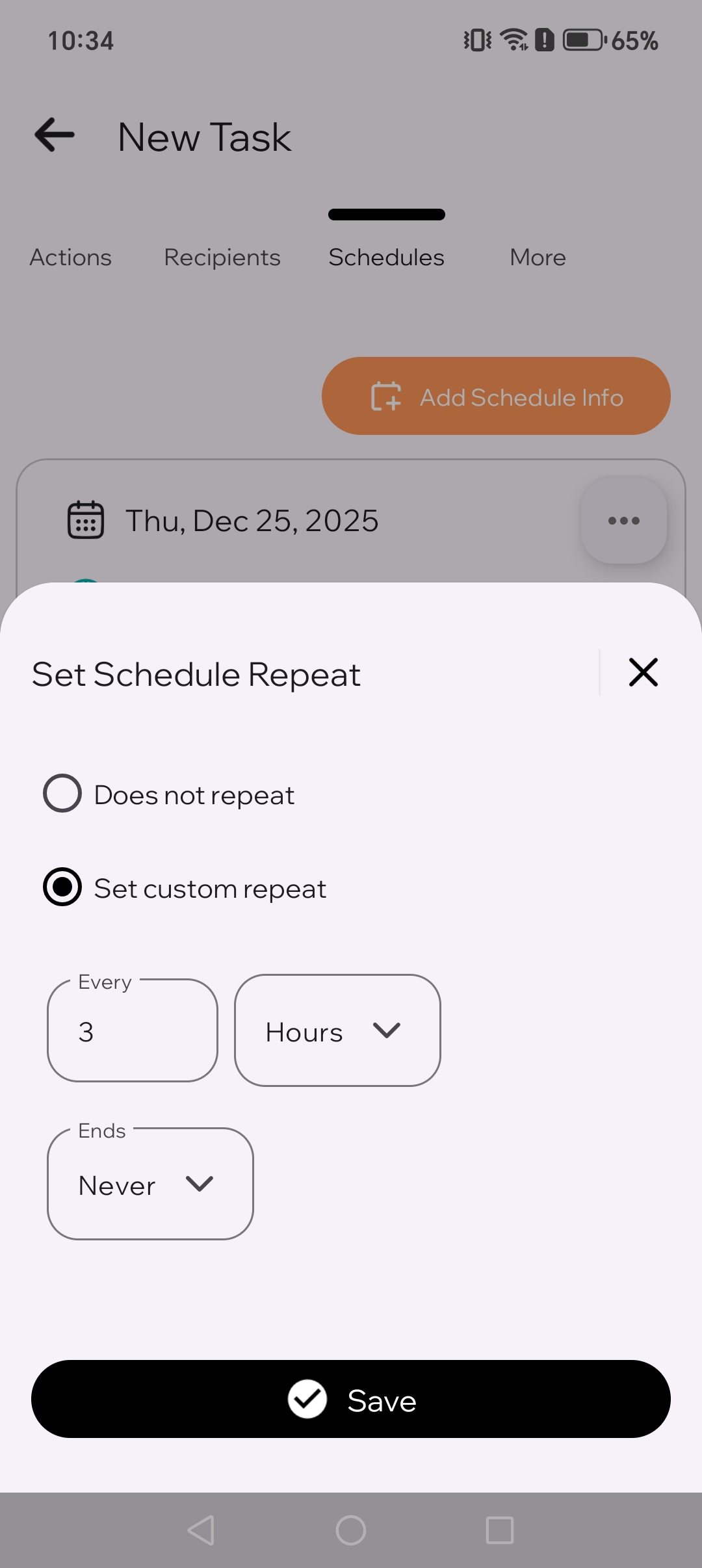
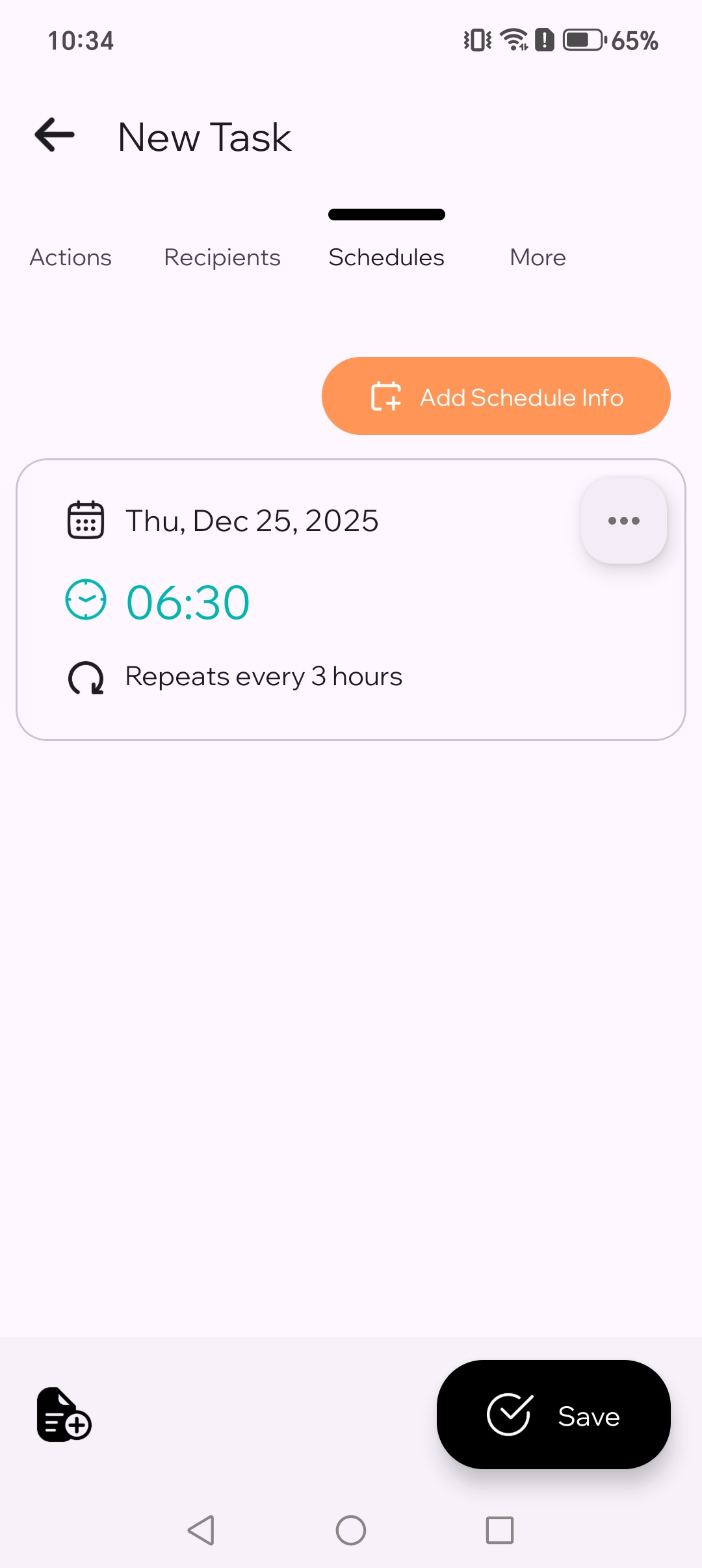
Set Schedule Repeat picker showing set custom repeat button
5.3. Set it to repeat every 3 hours
6
Save
Tap Save. You are done.
Final step showing the Save button
6. Save the schedule.

What happens when it’s time to send

When the schedule triggers, TikTask runs on your phone and completes the action. If Android asks for permissions (like Accessibility), it’s just making sure TikTask is allowed to run on time.

If messages run late or do not send, it is usually a phone setting, not your schedule. Do these once:

✅ Enable Accessibility (required)
✅ Disable battery optimizations for TikTask
✅ Enable auto-start / background activity (some phones)
✅ Enable notifications (so you can see alerts)

Quick troubleshooting

  • Confirm TikTask Accessibility is enabled
  • Confirm TikTask is not battery restricted
  • Try scheduling again 2 minutes from now as a test
  • If you use Xiaomi, Tecno, or Infinix, follow the brand guide for background settings
💡
Tip
If you message the same people often, create a Recipient List. It saves time and reduces mistakes.