
शुरुआत
• 4 मिनट पढ़ने में
• TikTask Team
⚡ 30 सेकंड में अपना पहला TikTask बनाएँ
एक आसान टेस्ट टास्क से शुरू करें: एक एक्शन चुनें, छोटा मैसेज लिखें, चैनल और रिसिपिएंट चुनें, समय सेट करें और सहेजें।
सेटअप
शुरुआती
शेड्यूलिंग
आपका पहला TikTask लगभग एक मिनट में बन जाना चाहिए। एक आसान टेस्ट से शुरू करें ताकि आप पूरा फ़्लो एक बार समझ सकें।
उसके बाद आप यही तरीका व्हाट्सएप, टेलीग्राम, जीमेल, स्टेटस पोस्ट और रिकरिंग रूटीन के लिए दोबारा इस्तेमाल कर सकते हैं।
ℹ️
झटपट जवाब
अपना पहला TikTask बनाने के लिए "बनाएँ" पर टैप करें, एक एक्शन चुनें, छोटा मैसेज लिखें, एक चैनल और एक रिसिपिएंट चुनें, कुछ मिनट आगे का समय सेट करें और सहेजें।
TikTask में क्या-क्या होता है
- एक एक्शन, जैसे संदेश भेजें या SMS भेजें
- आपका कंटेंट, जैसे टेक्स्ट मैसेज या अटैचमेंट
- एक या एक से ज़्यादा चैनल्स, जैसे व्हाट्सएप या टेलीग्राम
- सही रिसिपिएंट्स या गंतव्य
- एक शेड्यूल जो TikTask को बताता है कि कब चलना है
स्टेप-बाय-स्टेप
1
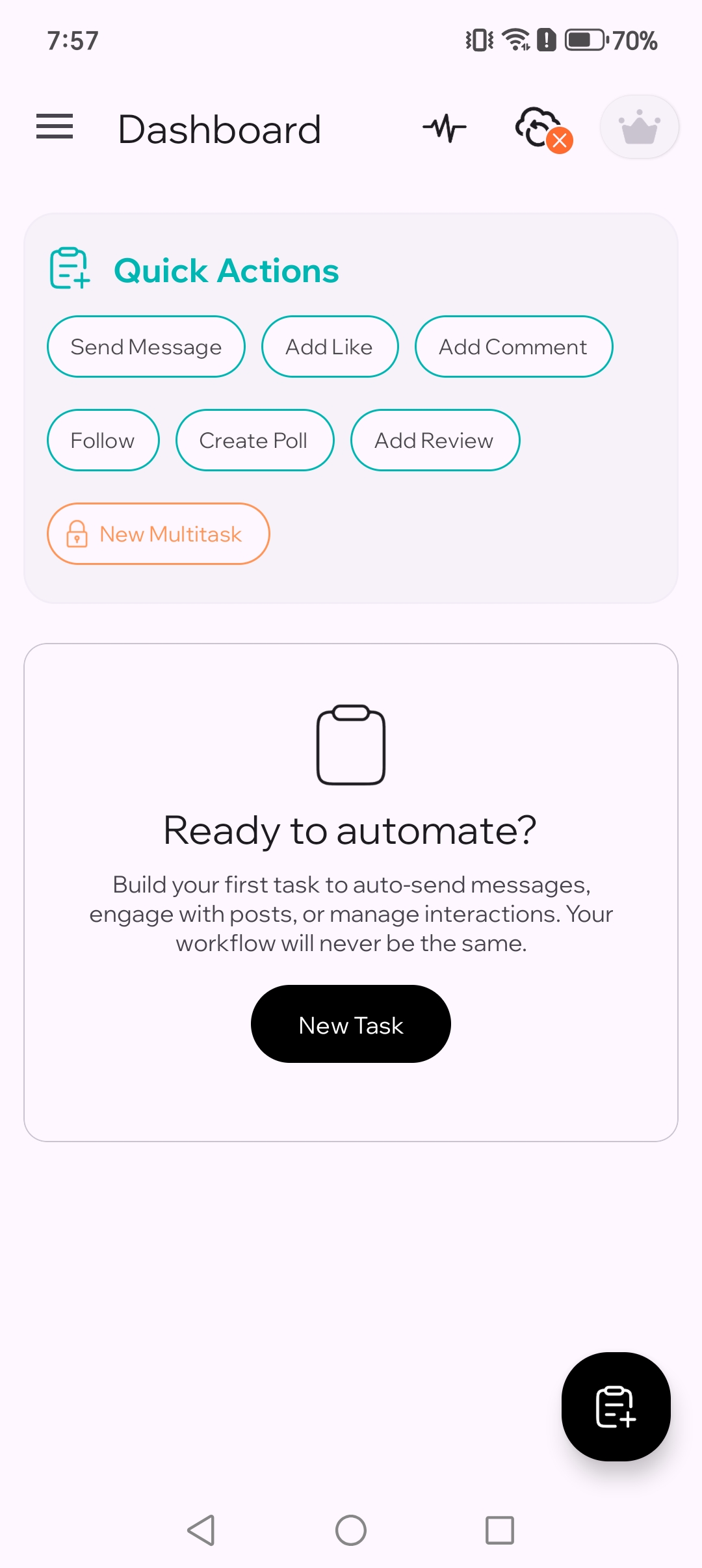
"बनाएँ" पर टैप करें
TikTask खोलें और "बनाएँ" पर टैप करें। हर नया टास्क यहीं से शुरू होता है।
2
एक एक्शन चुनें
अपने पहले टेस्ट के लिए संदेश भेजें चुनें। एक्शन TikTask को बताता है कि आप उससे क्या करवाना चाहते हैं।
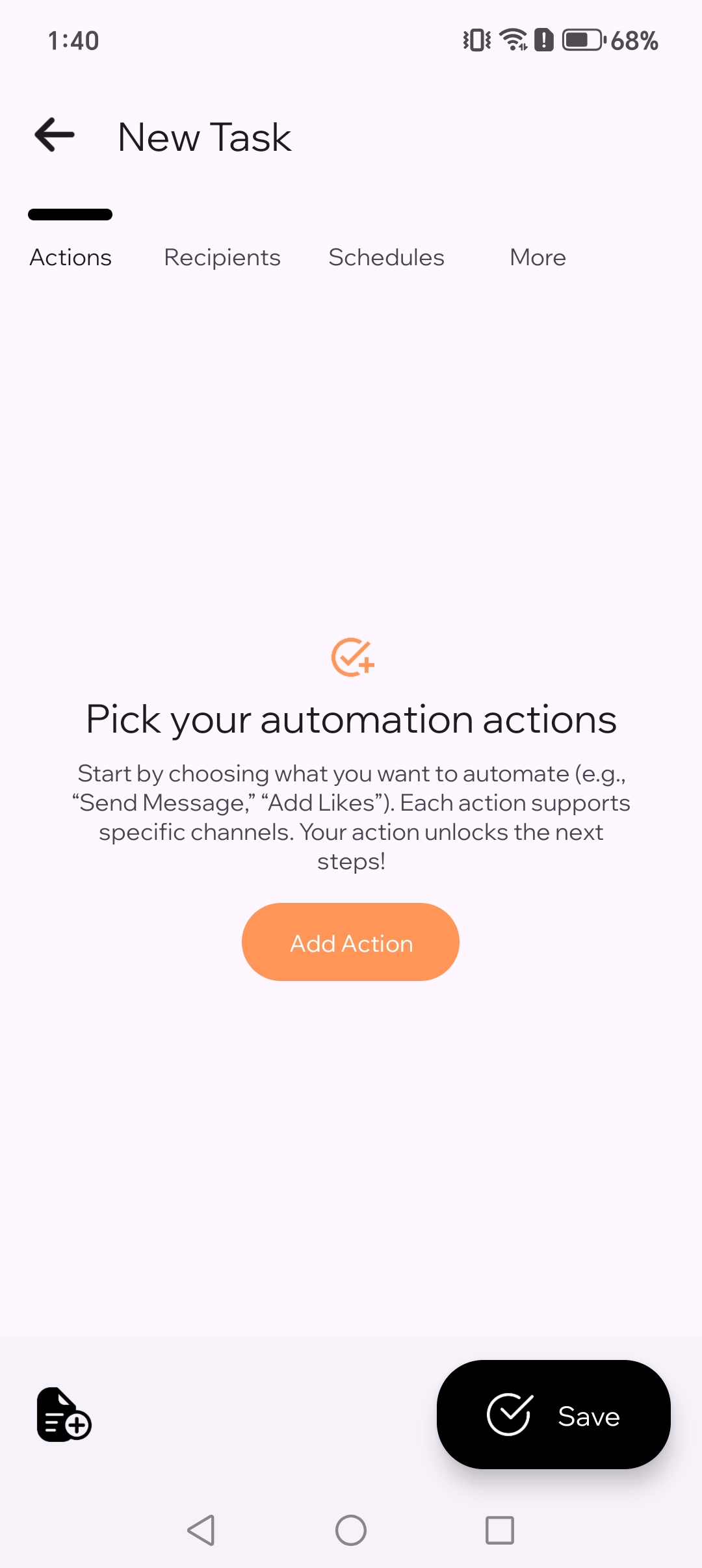
2.1. अपना ऑटोमेशन एक्शन चुनें।
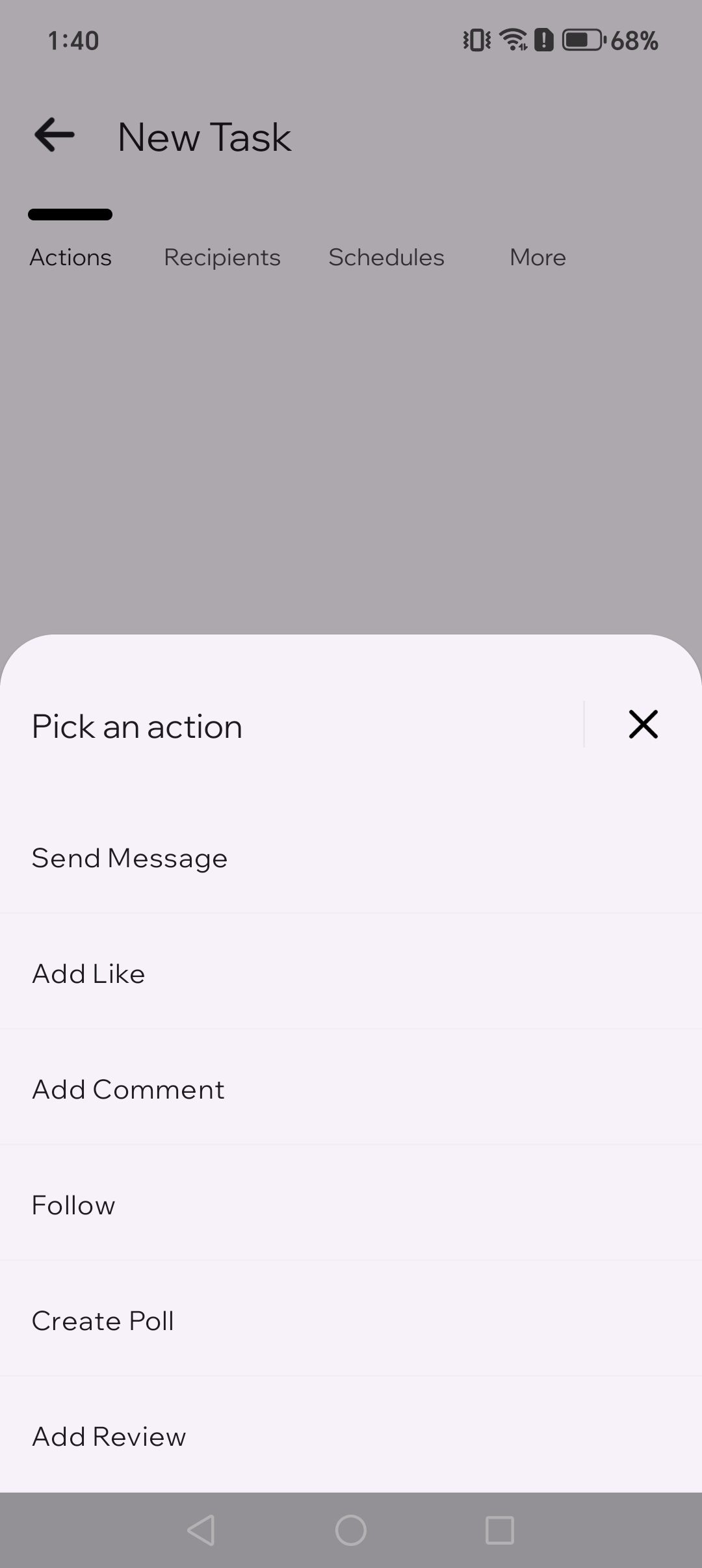
2.2. "संदेश भेजें" एक्शन चुनें।
3
अपना मैसेज लिखें
“नमस्ते, यह एक शेड्यूल किया गया संदेश है 🙂” जैसा छोटा टेस्ट मैसेज लिखें। पहला टेस्ट आसान रखें।

4
एक चैनल चुनें
पहले टेस्ट के लिए व्हाट्सएप चुनें। चैनल वही ऐप है जहाँ TikTask यह एक्शन चलाएगा।
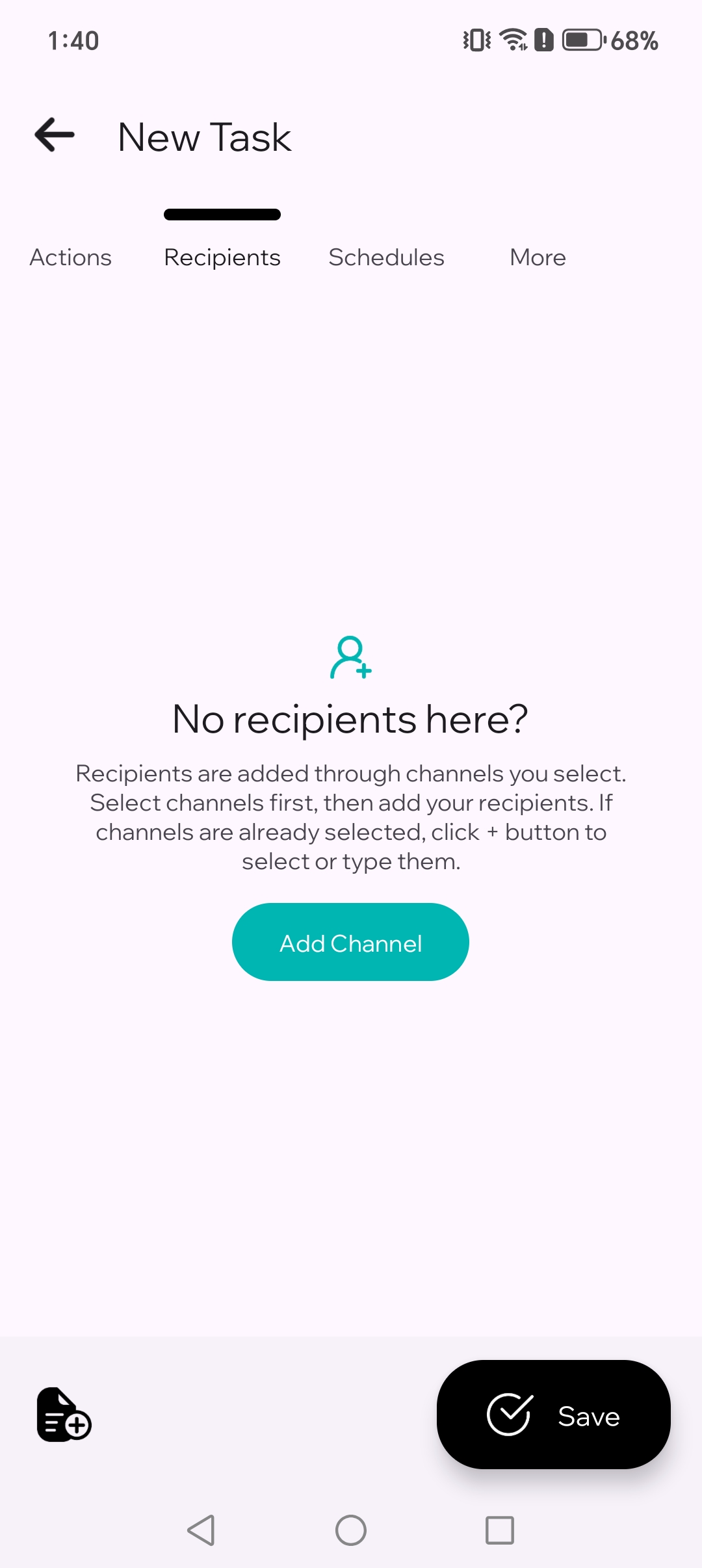
4.1. वह ऐप चुनें जिसके जरिए आप भेजना चाहते हैं।
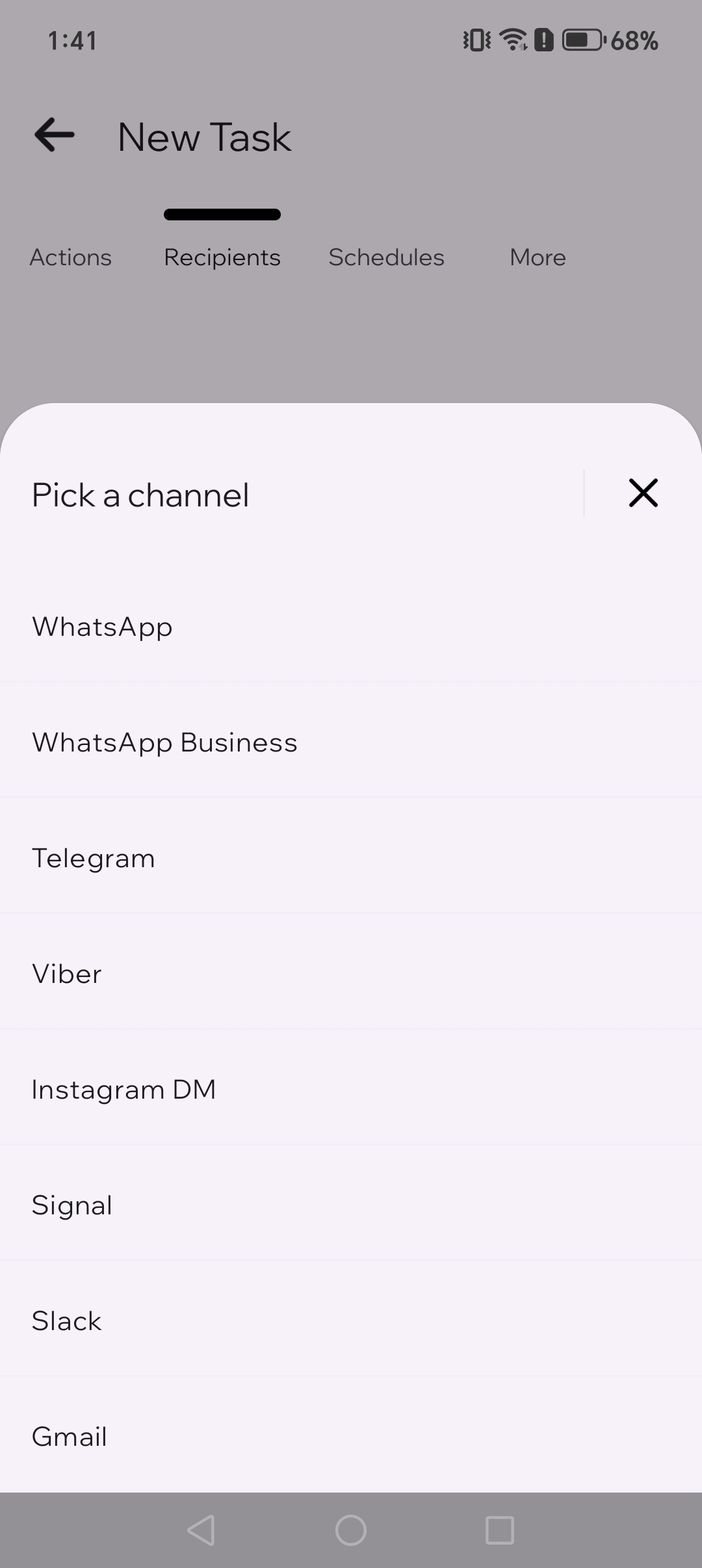
4.2. अपने पहले टेस्ट के लिए व्हाट्सएप चुनें।
5
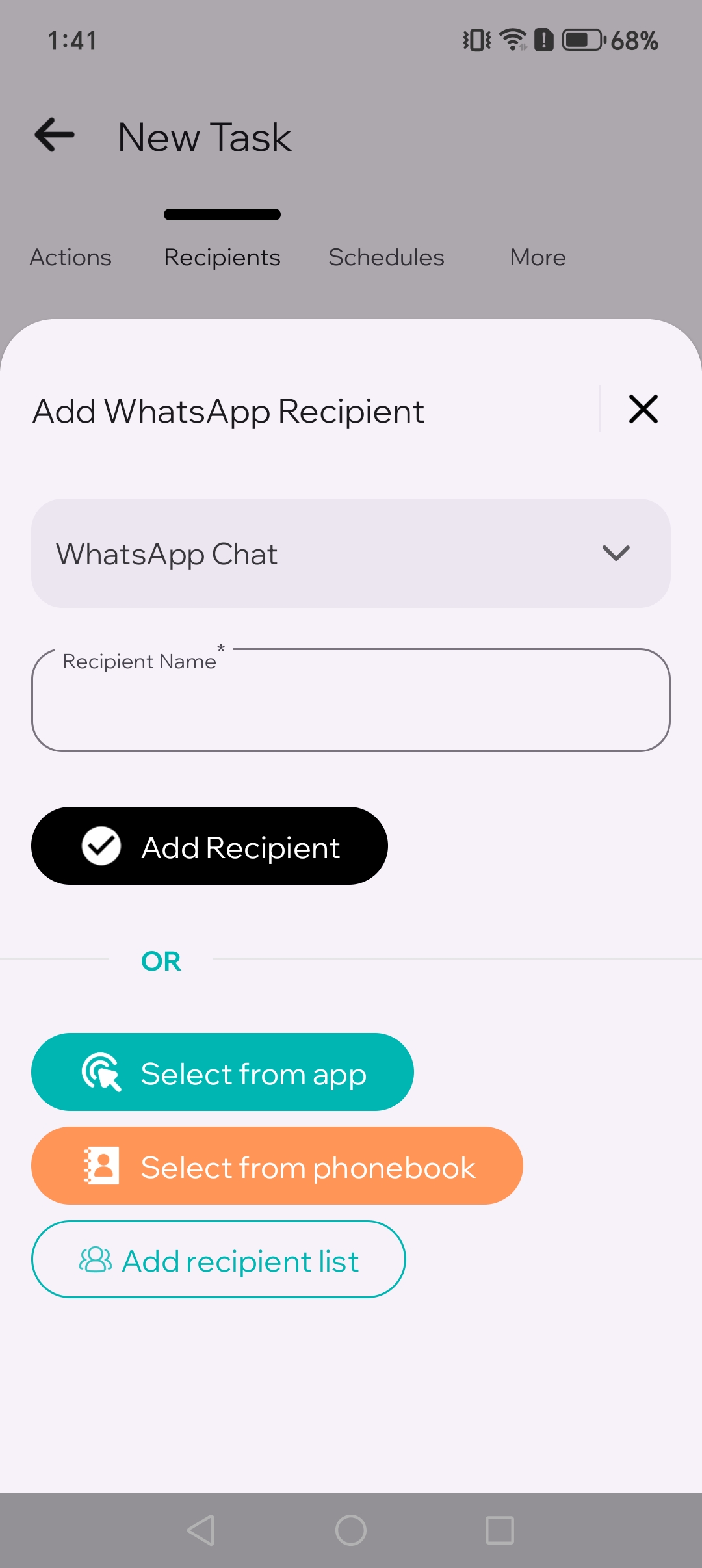
प्राप्तकर्ता चुनें
एक चैट, कॉन्टैक्ट या ग्रुप चुनें। पहले टेस्ट में सिर्फ एक प्राप्तकर्ता रखने से जाँच आसान हो जाती है।
6
समय सेट करें
अभी से 2–3 मिनट बाद का समय चुनें ताकि आप जल्दी टेस्ट कर सकें।
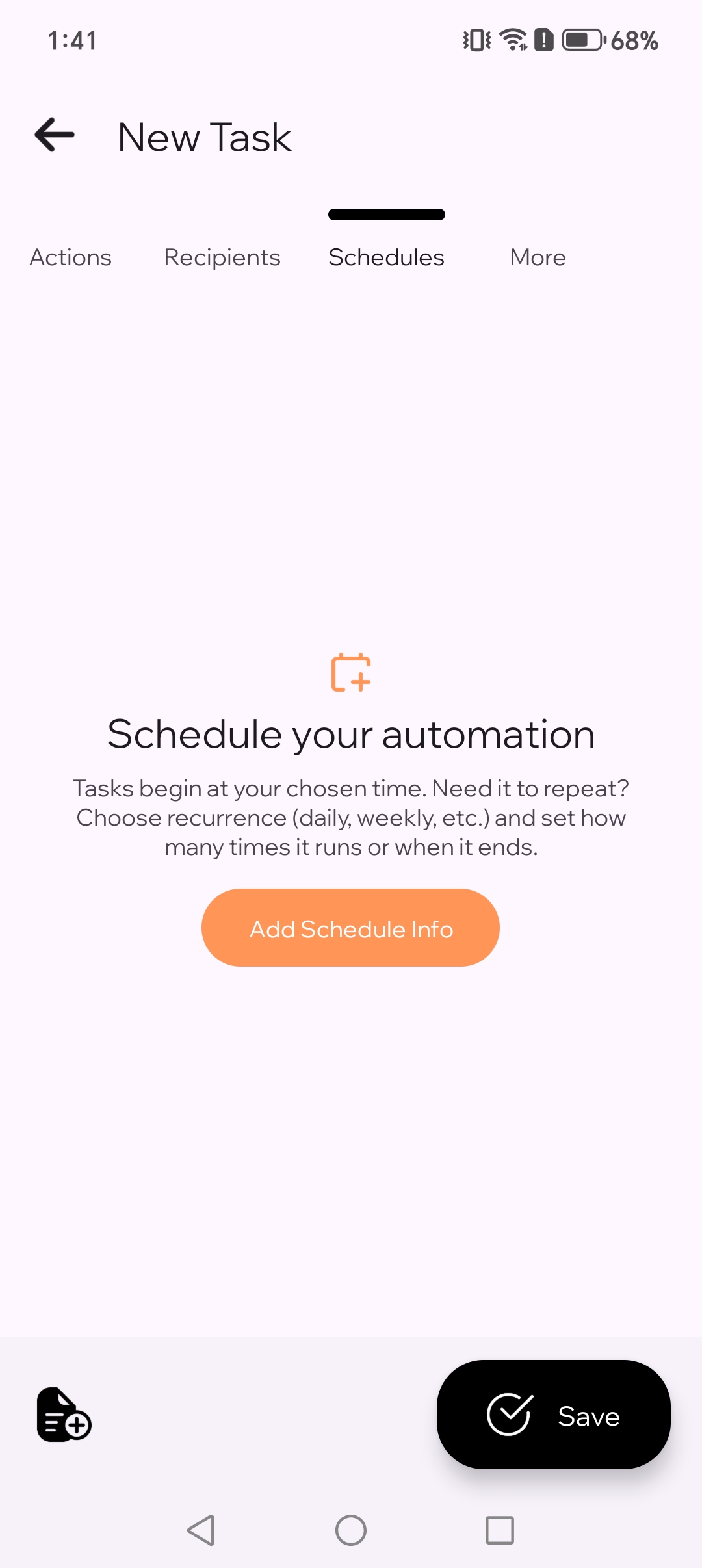
6.1. अपने टास्क के लिए शेड्यूल जानकारी जोड़ें।
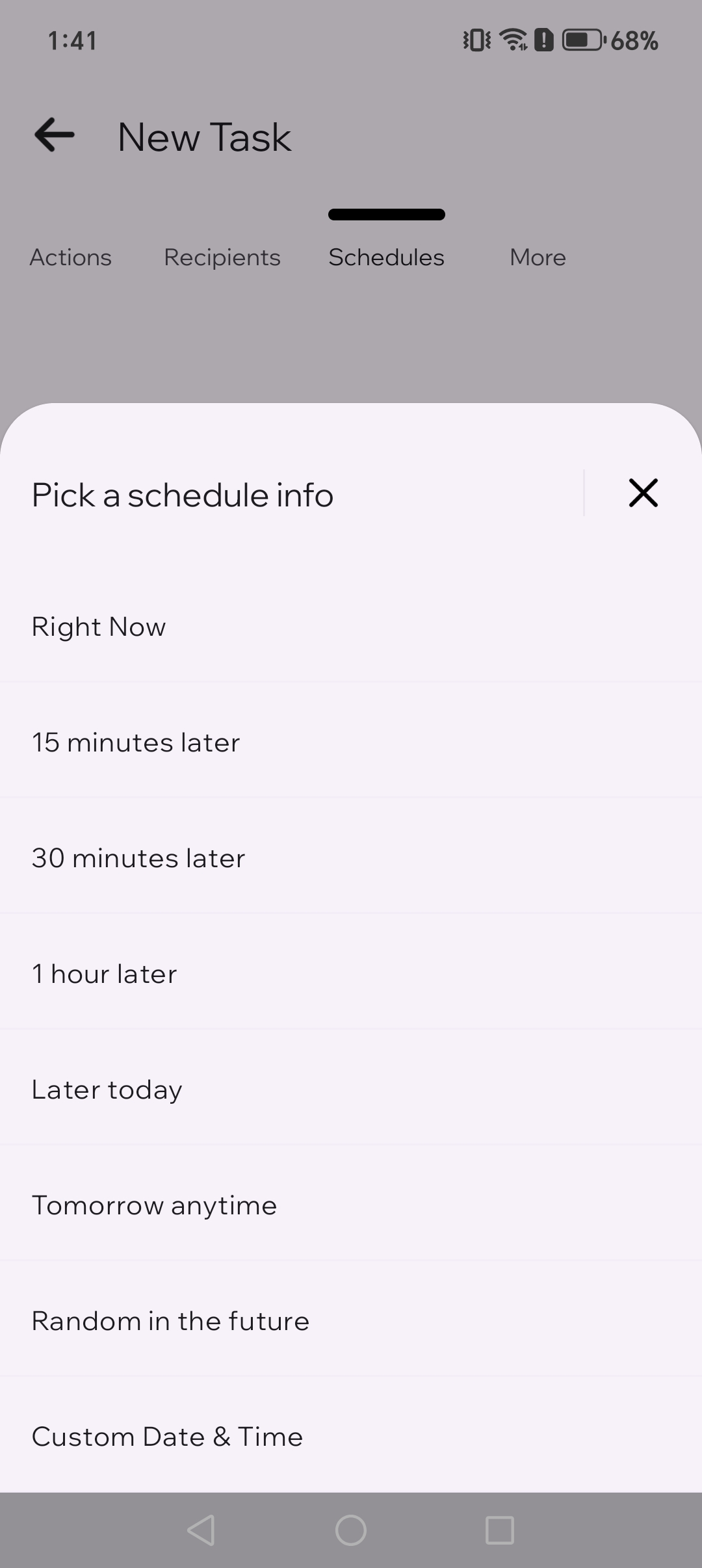
6.2. जल्दी टेस्ट के लिए एक समय सेट करें।
7
सहेजें
"सहेजें" पर टैप करें। TikTask आपके चुने हुए समय पर टास्क चलाएगा।

अगर TikTask सेटअप मदद माँगे
TikTask आपके फ़ोन पर चलता है। अगर एंड्रॉइड बैकग्राउंड में काम को रोक रहा है, तो पहले सिस्टम मॉनिटर खोलें। यह सिर्फ वही जांचें दिखाता है जो आपके डिवाइस के लिए ज़रूरी हैं।
- जब TikTask कहे, तब एक्सेसिबिलिटी सेवा चालू करें
- अगर एंड्रॉइड बैकग्राउंड काम रोक रहा है, तो बैटरी अनुकूलन बंद करें
- अगर आपके फ़ोन में विकल्प हो, तो ऑटो-स्टार्ट या बैकग्राउंड गतिविधि की अनुमति दें
- नोटिफ़िकेशन्स चालू रखें ताकि चेतावनियाँ और टेस्ट परिणाम दिख सकें
एक बार टेस्ट करें
- टास्क को 2–3 मिनट आगे के लिए शेड्यूल करें
- फ़ोन लॉक करें और रन टाइम का इंतज़ार करें
- अगर यह देर से चले, तो फिर से सिस्टम मॉनिटर खोलें और उसके बाद एंड्रॉइड सेटअप चेकलिस्ट इस्तेमाल करें
🧭
शुरुआती टिप
पहले टास्क के लिए व्हाट्सएप, एक रिसिपिएंट और साधारण टेक्स्ट मैसेज इस्तेमाल करें। सब कुछ सही चल रहा है या नहीं, यह जाँचने का यही सबसे तेज़ तरीका है।
अक्सर पूछे जाने वाले सवाल
एक्शन, चैनल और रिसिपिएंट में क्या फ़र्क है? +
एक्शन वह है जो TikTask करेगा, चैनल वह ऐप है जिसे वह इस्तेमाल करेगा, और रिसिपिएंट वह है जिसे यह मिलेगा।
अगर मेरा पहला टास्क नहीं चलता तो क्या करें? +
पहले सिस्टम मॉनिटर खोलें और अपने फ़ोन के लिए सुझाए गए जांचें पूरे करें। पहली बार के ज़्यादातर समस्याएँ टास्क की वजह से नहीं, बल्कि एंड्रॉइड बैकग्राउंड प्रतिबंध की वजह से होते हैं।
क्या TikTask को चलाने के लिए एक्सेसिबिलिटी ज़रूरी है? +
हाँ। एक्सेसिबिलिटी, TikTask को आपके फ़ोन पर सही समय पर शेड्यूल किया गया एक्शन्स भरोसेमंद तरीके से पूरा करने देती है।
क्या मैं एक ही टास्क में एक से ज़्यादा चैनल्स इस्तेमाल कर सकता हूँ? +
हाँ। पहले आसान टेस्ट के बाद, जहाँ वर्कफ़्लो उचित हो वहाँ आप उसी टास्क में एक से ज़्यादा चैनल्स जोड़ सकते हैं।