Erste Schritte
• 4 Min. Lesezeit
• TikTask Team
⚡ Erstelle deinen ersten TikTask in 30 Sekunden
Starte mit einer einfachen Testaufgabe: Wähle eine Aktion, schreibe eine kurze Nachricht, wähle einen Kanal und Empfänger, lege die Zeit fest und speichere.
Einrichtung
Anfänger
Planung
Dein erster TikTask sollte ungefähr eine Minute dauern. Starte mit einem einfachen Test, damit du den Ablauf einmal verstehst.
Danach kannst du dieselbe Logik für WhatsApp, Telegram, Gmail, Status-Beiträge und wiederkehrende Routinen verwenden.
ℹ️
Kurzantwort
Um deinen ersten TikTask zu erstellen, tippe auf „Erstellen“, wähle eine Aktion, schreibe eine kurze Nachricht, wähle einen Kanal und einen Empfänger, lege eine Zeit ein paar Minuten in der Zukunft fest und speichere.
Was zu einem TikTask gehört
- Eine Aktion, zum Beispiel „Nachricht senden“ oder „SMS senden“
- Dein Inhalt, zum Beispiel eine Textnachricht oder ein Anhang
- Ein oder mehrere Kanäle, zum Beispiel WhatsApp oder Telegram
- Die richtigen Empfänger oder das richtige Ziel
- Ein Zeitplan, der TikTask sagt, wann die Aufgabe ausgeführt werden soll
Schritt für Schritt
1
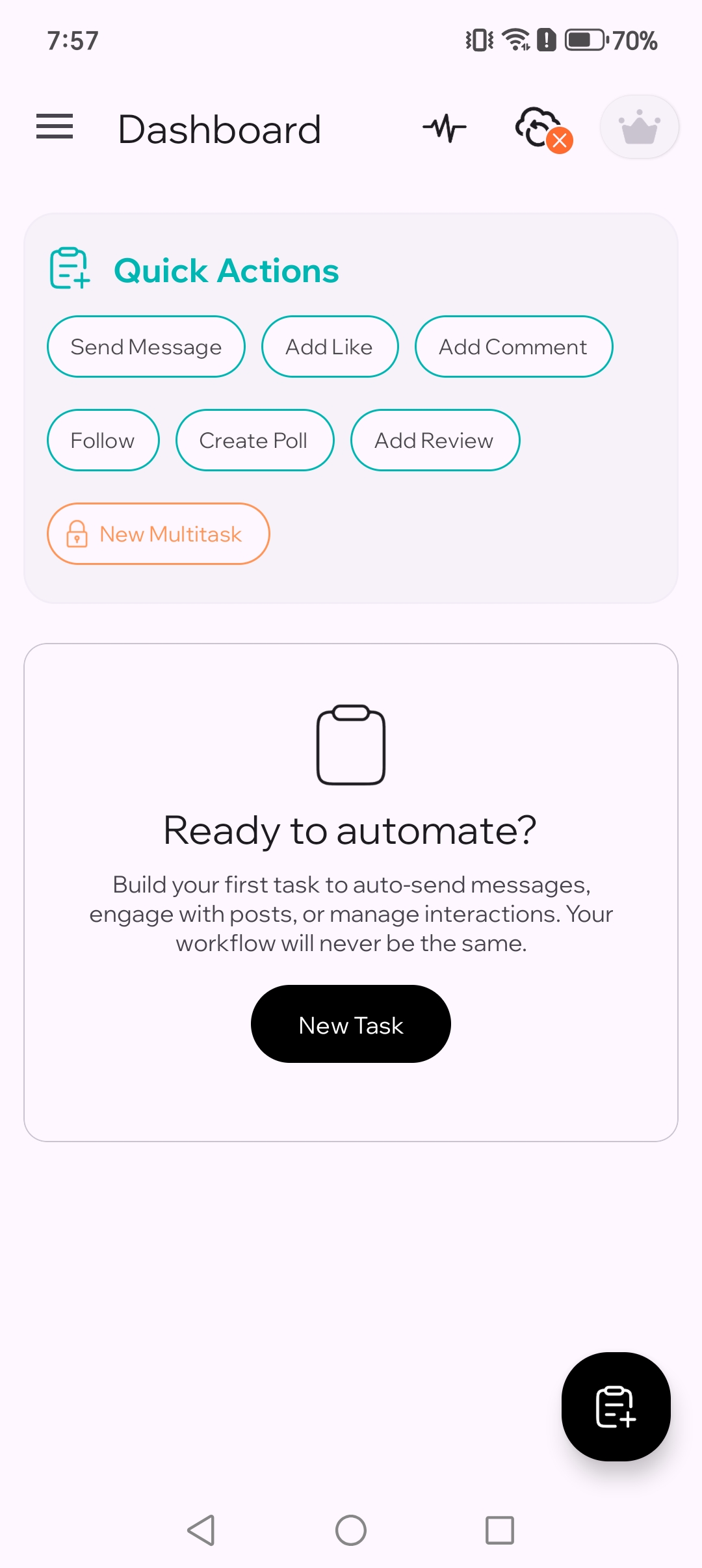
Tippe auf „Erstellen“
Öffne TikTask und tippe auf „Erstellen“. Jede neue Aufgabe beginnt hier.
2
Wähle eine Aktion
Für deinen ersten Test wähle „Nachricht senden“. Aktionen legen fest, was TikTask für dich tun soll.
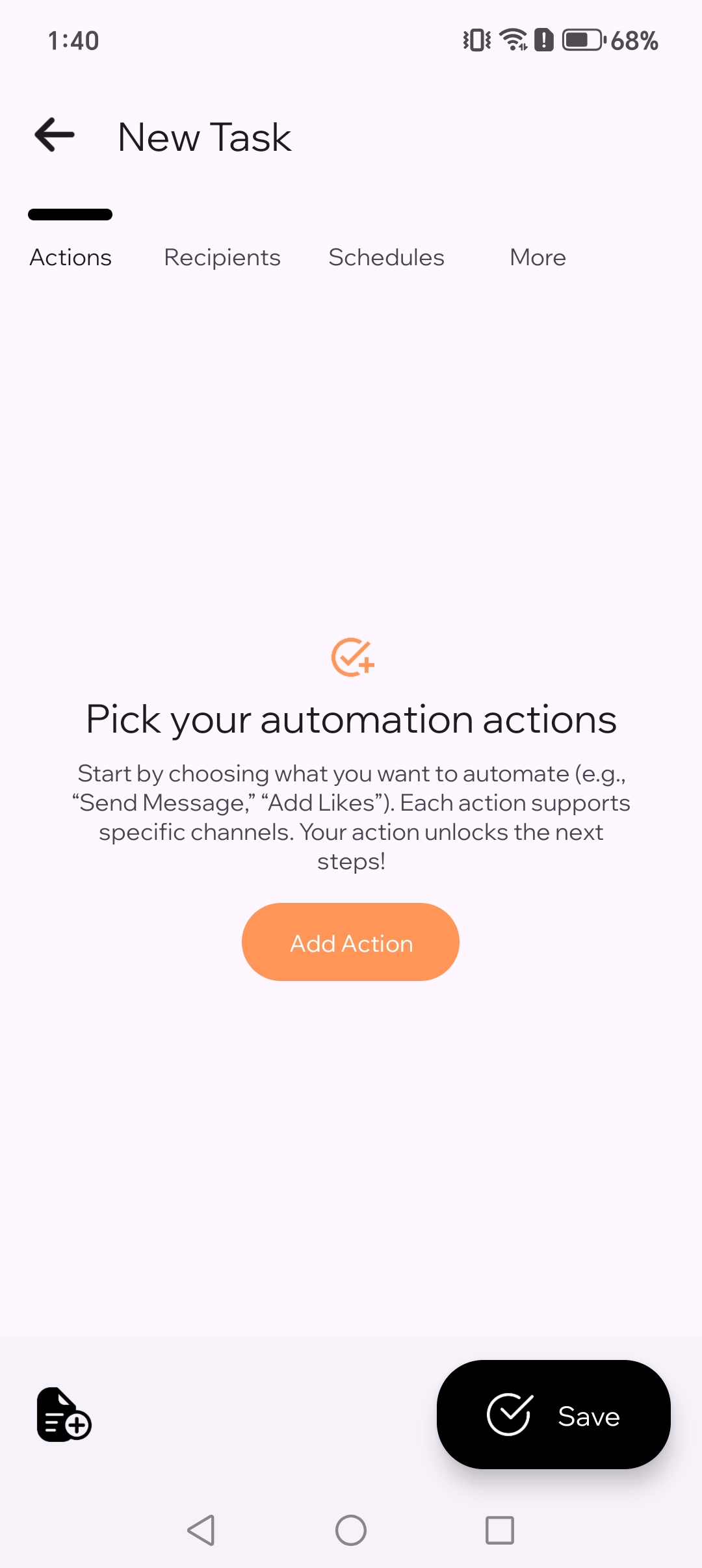
2.1. Wähle deine Automatisierungsaktion.
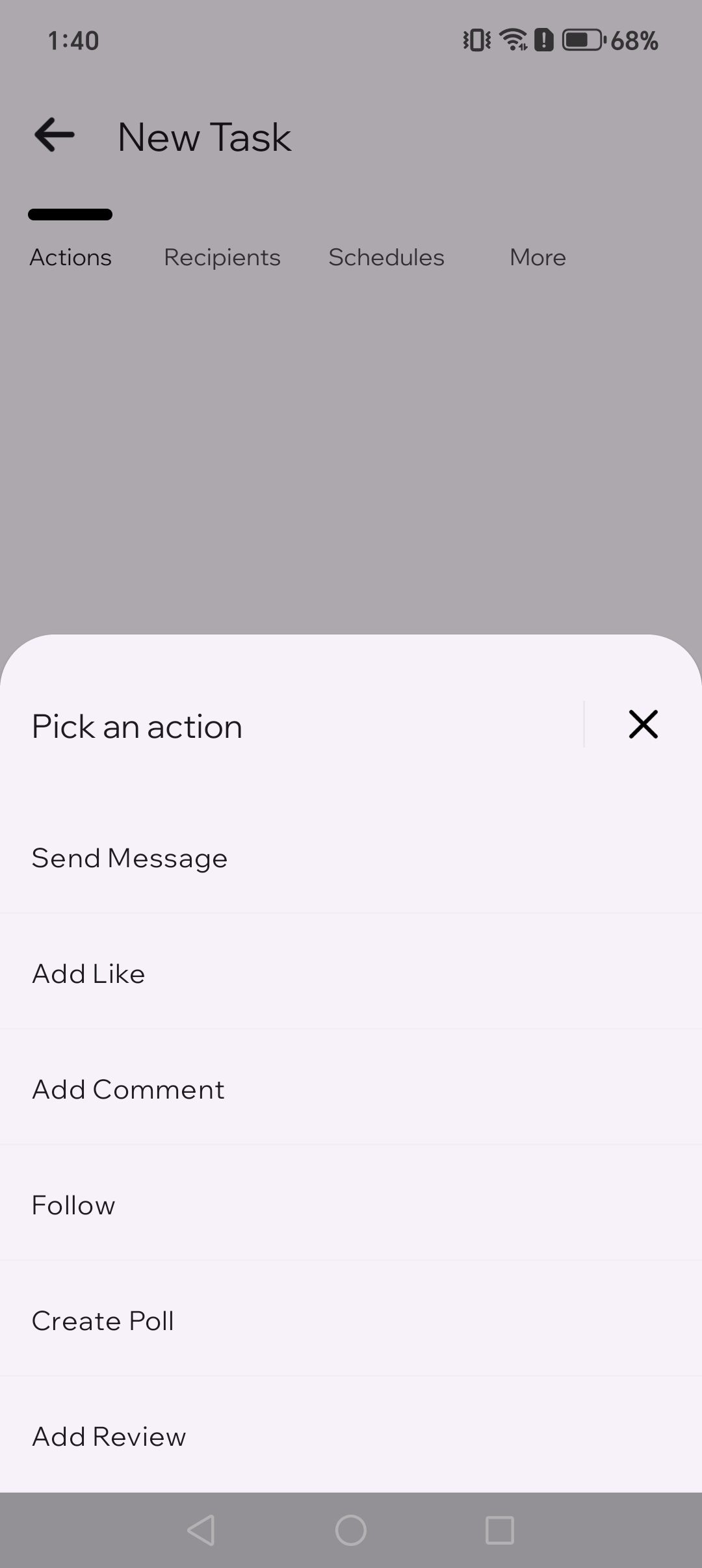
2.2. Wähle die Aktion „Nachricht senden“.
3
Schreibe deine Nachricht
Gib eine kurze Testnachricht ein, zum Beispiel „Hey, das ist eine geplante Nachricht 🙂“. Halte den ersten Test einfach.

4
Wähle einen Kanal
Wähle für den ersten Test WhatsApp. Ein Kanal ist die App, in der TikTask die Aktion ausführt.
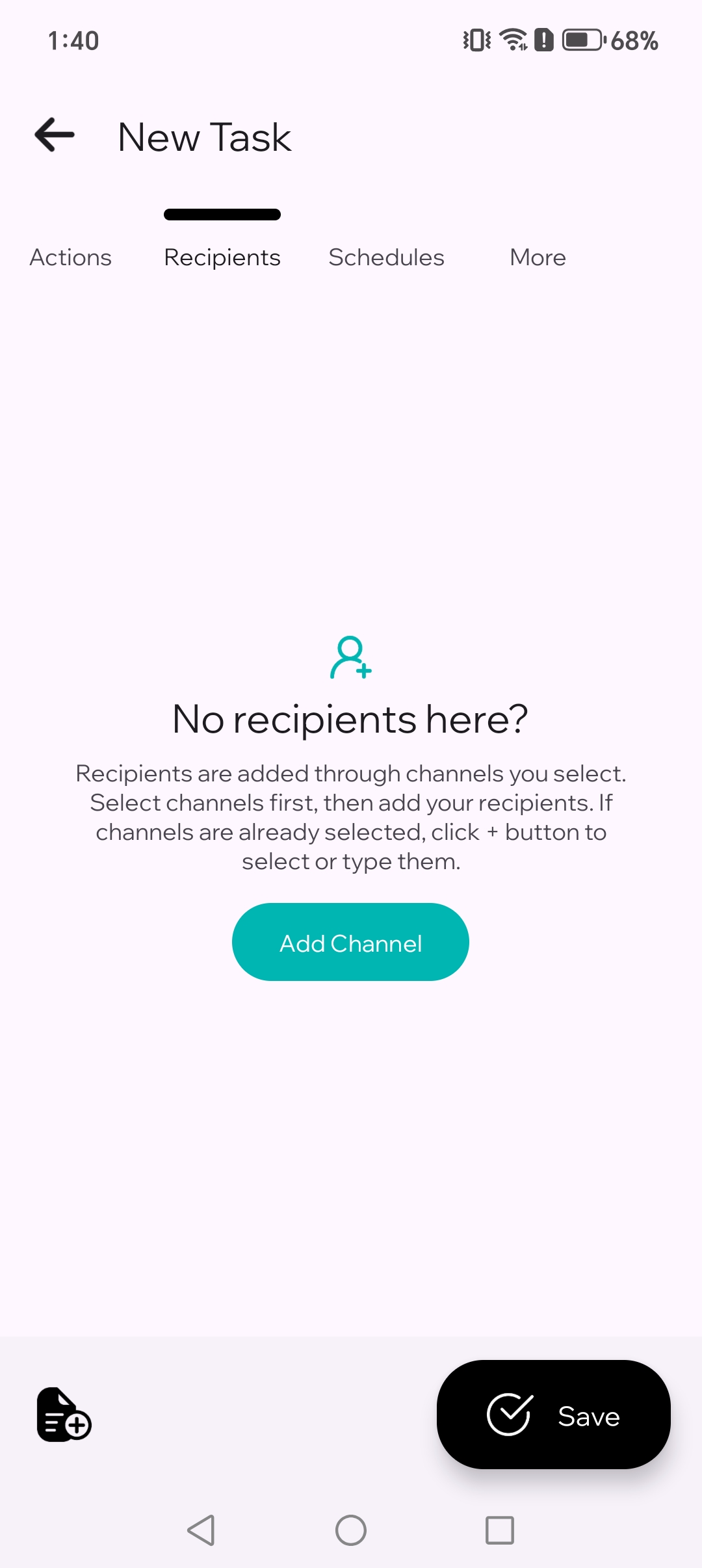
4.1. Wähle die App, über die du senden möchtest.
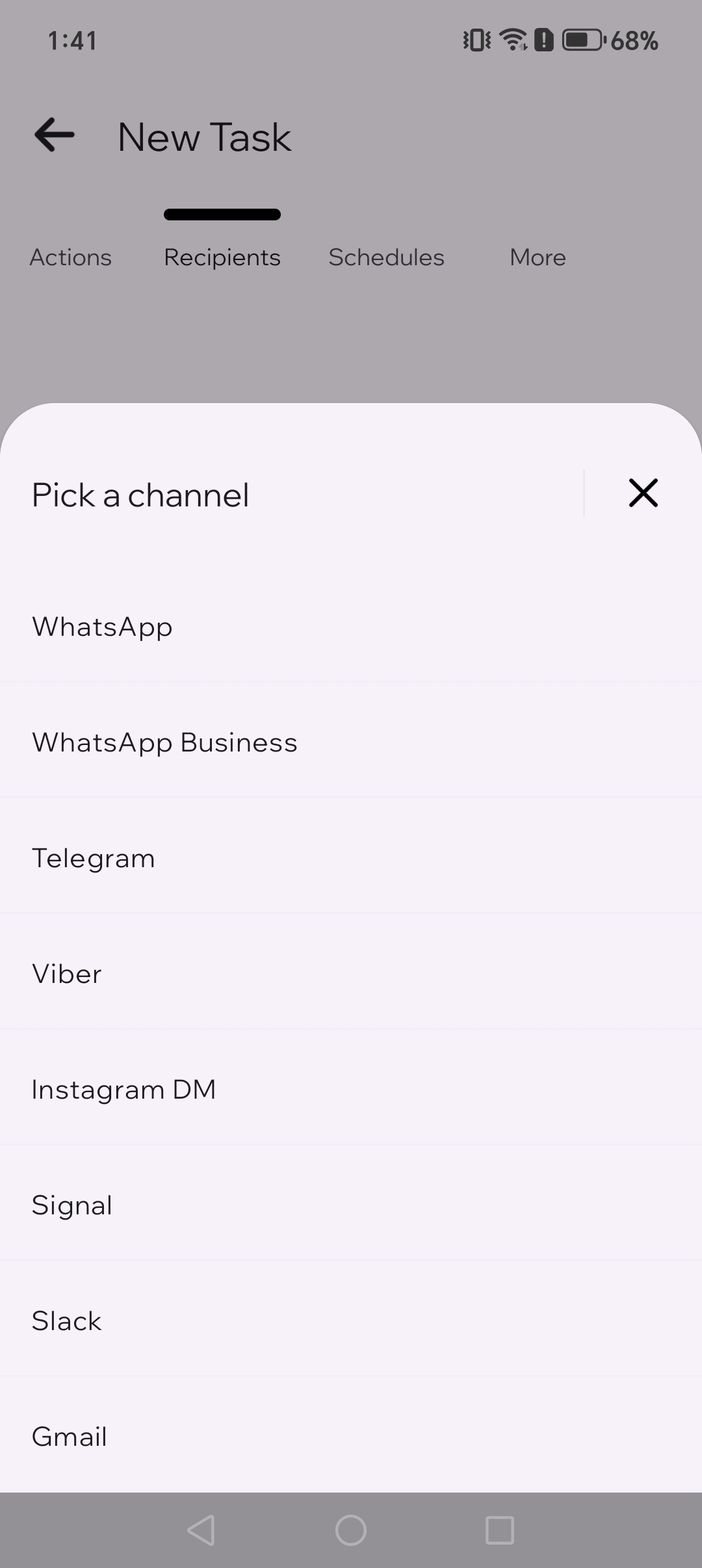
4.2. Wähle WhatsApp für deinen ersten Test.
5
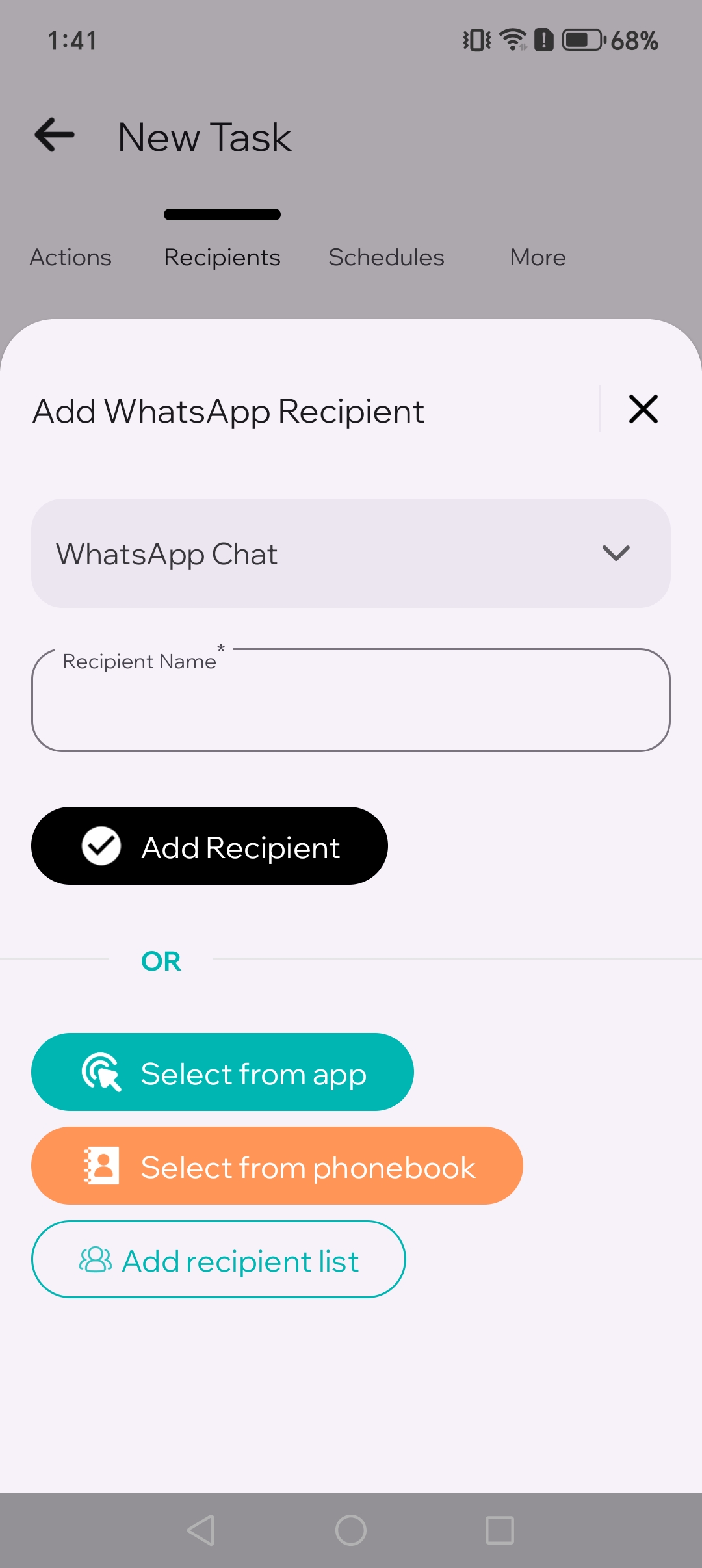
Wähle Empfänger aus
Wähle einen Chat, Kontakt oder eine Gruppe. Mit nur einem Empfänger lässt sich der erste Test am einfachsten prüfen.
6
Lege die Zeit fest
Wähle eine Zeit in 2–3 Minuten, damit du den Test schnell durchführen kannst.
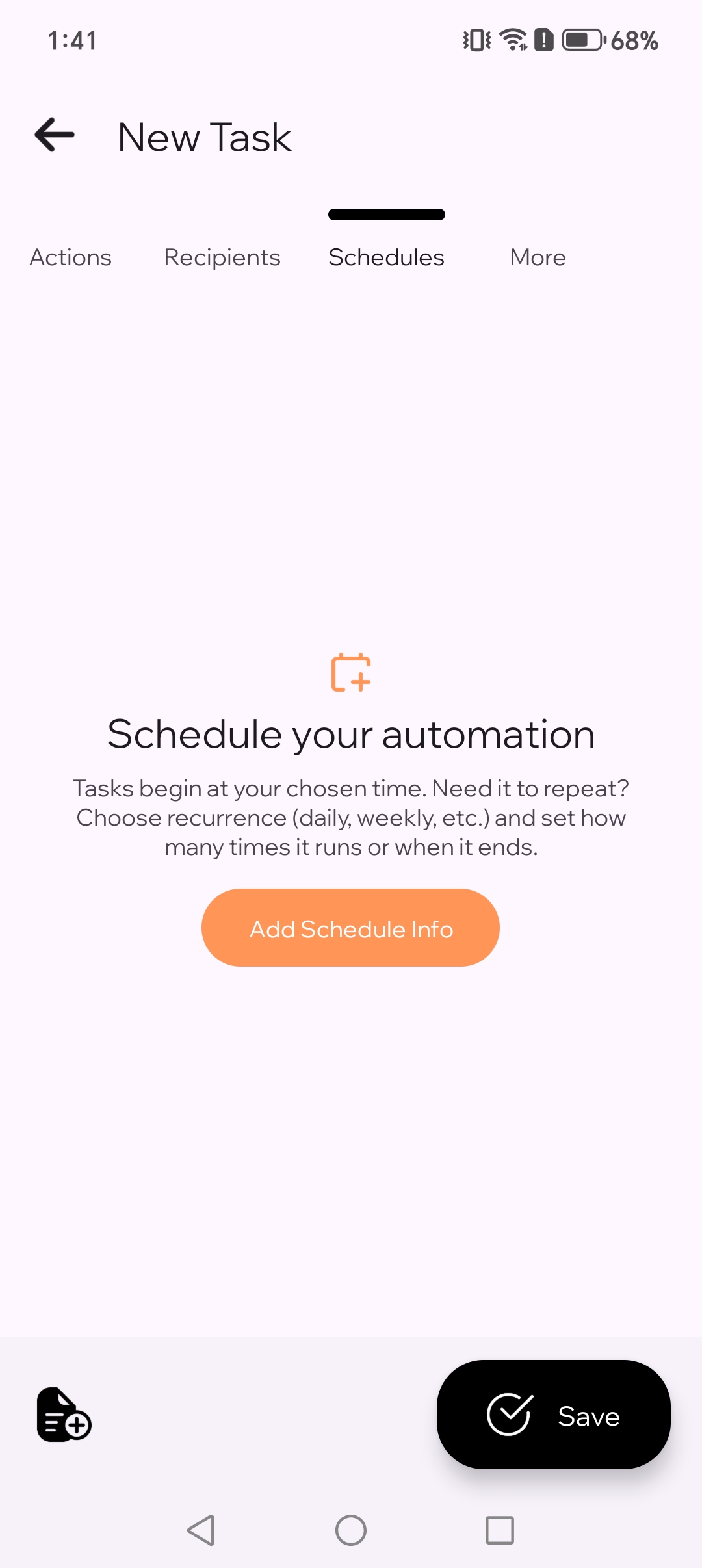
6.1. Füge Zeitplan-Informationen für deine Aufgabe hinzu.
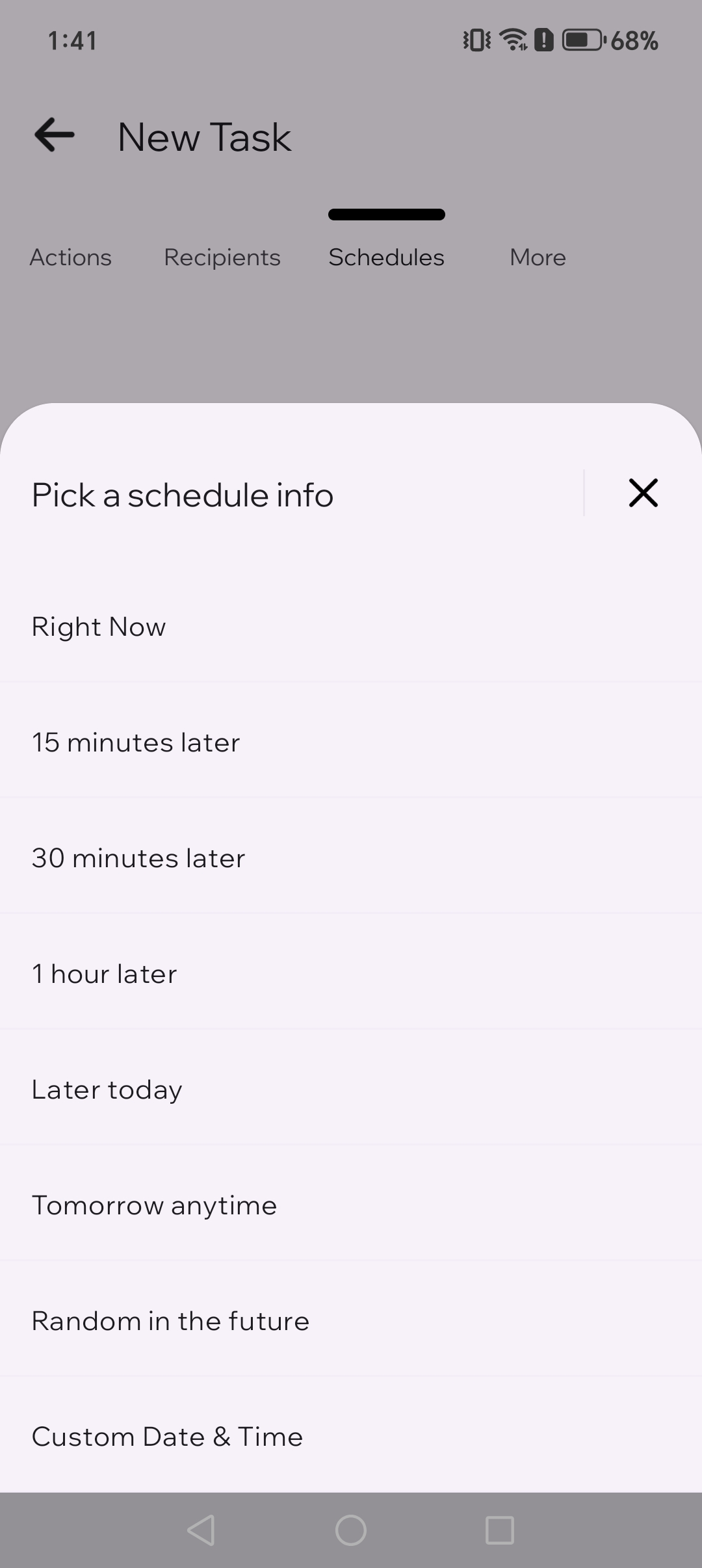
6.2. Lege eine Zeit für einen schnellen Test fest.
7
Speichern
Tippe auf „Speichern“. TikTask führt die Aufgabe zur gewählten Zeit aus.

Wenn TikTask Hilfe beim Setup anzeigt
TikTask läuft auf deinem Smartphone. Wenn Android Hintergrundaktivitäten blockiert, öffne zuerst den Systemmonitor. Dort werden nur die Prüfungen angezeigt, die für dein Gerät relevant sind.
- Aktiviere den Bedienungshilfe-Dienst, wenn TikTask danach fragt
- Deaktiviere die Akku-Optimierung, wenn Android Hintergrundaktivitäten stoppt
- Erlaube Auto-Start oder Hintergrundaktivität, wenn dein Smartphone diese Optionen anbietet
- Lass Benachrichtigungen aktiviert, damit du Warnungen und Testergebnisse sehen kannst
Teste es einmal
- Plane die Aufgabe 2–3 Minuten in die Zukunft
- Sperre dein Smartphone und warte auf die geplante Ausführungszeit
- Wenn die Ausführung verspätet ist, öffne erneut den Systemmonitor und nutze dann die Android-Setup-Checkliste
🧭
Tipp für Einsteiger
Für die erste Aufgabe nimm WhatsApp, einen Empfänger und eine einfache Textnachricht. So prüfst du am schnellsten, ob alles funktioniert.
FAQ
Was ist der Unterschied zwischen Aktion, Kanal und Empfänger? +
Die Aktion ist das, was TikTask tun soll, der Kanal ist die App, die dafür verwendet wird, und der Empfänger ist die Person oder der Ort, der die Nachricht erhält.
Was, wenn meine erste Aufgabe nicht ausgeführt wird? +
Öffne zuerst den Systemmonitor und erledige die empfohlenen Prüfungen für dein Smartphone. Die meisten Probleme beim ersten Test kommen von Android-Hintergrundbeschränkungen, nicht von der Aufgabe selbst.
Braucht TikTask Bedienungshilfe, um zu funktionieren? +
Ja. Die Bedienungshilfe ermöglicht TikTask, geplante Aktionen zuverlässig und zur richtigen Zeit auf deinem Smartphone auszuführen.
Kann ich in derselben Aufgabe mehr als einen Kanal verwenden? +
Ja. Nach dem ersten einfachen Test kannst du mehr als einen Kanal in derselben Aufgabe verwenden, wenn das für deinen Workflow sinnvoll ist.