
可靠性
• 6 分钟阅读
• TikTask Team
🛠️ 可靠性检查清单:如果定时任务延迟或未运行
如果定时任务延迟或没有运行,用这份检查清单快速找到阻塞点,并优先修正正确的 Android 设置。
故障排查
可靠性
Android
电池
如果某个 TikTask 没有运行,通常不是你的计划设置错了,而是 Android 在后台进行了省电限制。
好消息是:一旦你把问题修好一次,TikTask 通常就会变得非常可靠。
ℹ️
快速测试
新建一个 2 分钟后执行的计划,并让手机保持解锁。如果解锁时能运行、锁屏后不能运行,几乎总是电池或后台设置导致的。
先检查最基础的项目(30 秒)
✅ 确认计划处于启用状态(不是已暂停或已完成)
✅ 新建一个 2 分钟后执行的测试计划(避免时间判断错误)
✅ 如果开启了极致省电 / 超级省电,请先关闭
任务不运行的 4 个主要原因(以及对应修复)
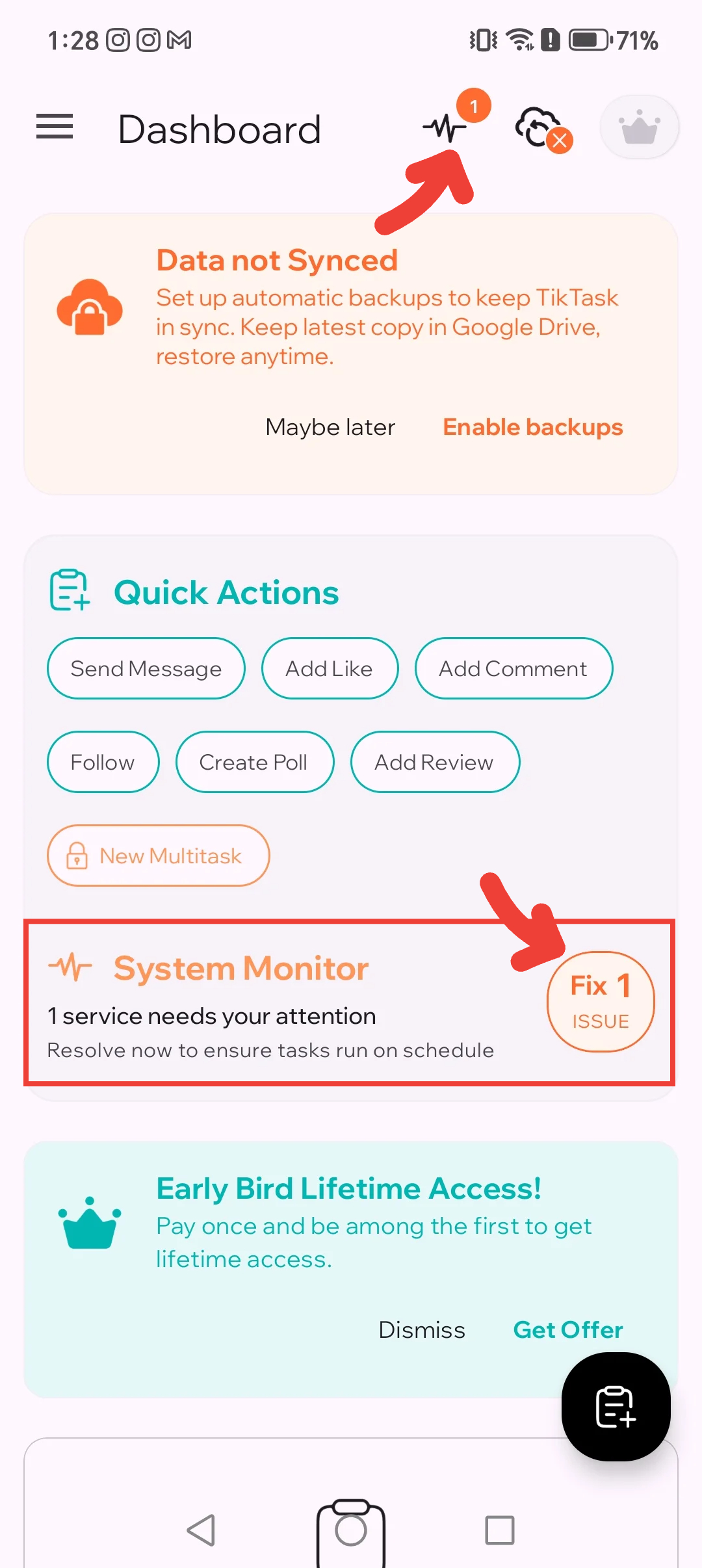
在 TikTask 首页打开系统监测,查看你的手机真正相关的检查项。它可以提示无障碍服务、电池优化、电源管理、小米特殊权限、后台电池限制、自启动 / 自动启动、通知或悬浮窗等问题,并在支持时跳转到相应设置页面。如果你的手机无法直接跳转,你仍然可以按下面各节中的设置路径手动操作。
1)无障碍服务已关闭(最常见)
TikTask 需要无障碍服务,才能在其他应用中执行操作。
1
打开无障碍设置
系统监测 → 点击“无障碍服务”;或手动进入:设置 → 无障碍 → 已安装的服务(不同手机名称可能略有不同)。
2
开启 TikTask
找到 TikTask 并将其开启。
2)电池优化正在阻止 TikTask
Android 可能会为了省电而延迟或停止应用。请将 TikTask 设置为“不受限制”(或“不优化”)。
1
打开 TikTask 电池设置
系统监测 → 点击“电池监测”;或手动进入:设置 → 应用 → TikTask → 电池。
2
将电池模式设为不受限制
选择“不受限制 / 无限制”(或“不优化”)。
3)自启动 / 后台活动被禁用
某些品牌需要单独开启一个开关,应用才能在后台启动(常见于小米、传音和 Infinix)。
- 查找“自启动”“应用启动”或“电源管理”相关选项
- 为 TikTask 开启该权限
4)手机品牌专属的后台限制仍然存在
在一些手机上,最后一个阻塞项会藏在品牌专属菜单里,例如电源管理、后台运行限制、小米特殊权限或应用启动。通知和悬浮窗本身不会让任务运行,但能帮助你看到提醒和警告。
✅ 查看对应手机品牌的指南,检查电源管理、后台运行限制、小米特殊权限或应用启动规则
✅ 为 TikTask 开启通知,以便看到警告
✅ 只有在 TikTask 需要提醒或计时器时,才开启“在其他应用上层显示”
快速“现在就做”检查清单(2 分钟)
- ✓ 已开启无障碍服务
- ✓ 电池设置为“不受限制 / 未优化”
- ✓ 已允许自启动 / 后台活动(如果手机提供该选项)
- ✓ 已开启通知
- ✓ 仅在 TikTask 需要提醒或计时器时开启悬浮窗权限
如果仍然没有运行
- 重启手机一次
- 重启后先打开一次 TikTask
- 新建一个 2 分钟后执行的测试计划
🧭
品牌提示
小米、Tecno、Infinix、OPPO、Realme、Vivo、Honor、Huawei,以及部分 OnePlus 机型,对后台限制会更激进。想要获得最佳可靠性,请查看与你设备对应的 OEM 指南。
先别急着怪渠道应用
大多数任务延迟,并不是 WhatsApp、Telegram、Gmail 或其他渠道本身引起的。真正的阻塞通常是 Android 的电池策略、无障碍服务或品牌专属的后台限制。
常见问题
任务不运行最常见的原因是什么? +
最常见的两个原因是:无障碍服务被关闭,或电池限制在后台阻止了 TikTask。
我应该先改渠道应用的设置吗? +
通常不用。先从系统监测、Android 设置检查清单,以及需要时对应的 OEM 指南开始。
我需要把所有 OEM 设置都开完吗? +
不需要。额外检查项取决于手机品牌系列。只使用与你设备匹配的 OEM 指南即可。
修复后最好的快速测试是什么? +
创建一个 2 分钟后执行的简单计划,锁屏后观察它是否按时运行。